# General Bots Suite - User Manual
> **The Complete Productivity Workspace**
>
> *AI-native productivity suite for modern teams*
---
## Welcome to General Bots Suite
General Bots Suite is your all-in-one workspace that combines communication, productivity, and AI assistance. All your productivity tools in one place - simple and powerful.
**What makes it special:**
- Everything works together seamlessly
- AI helps you with every task
- No complex setup required
- Works in your browser
---
## Part I: Getting Started
### Opening the Suite
1. **Open your web browser** (Chrome, Firefox, Safari, or Edge)
2. **Go to your General Bots address** (example: `http://your-company.bot:8080`)
3. **The Suite loads automatically** - you'll see the workspace in seconds
### Your First Look
When the Suite opens, you see:
 ### The Apps Menu
Click the **nine-dot grid** (⋮⋮⋮) in the top right to see all applications:
| Icon | App | What It Does |
|------|-----|--------------|
| 💬 | **Chat** | Talk with your AI assistant |
| 📁 | **Drive** | Store and manage your files |
| ✓ | **Tasks** | Manage your to-do lists |
| ✉ | **Mail** | Send and receive emails |
| 📅 | **Calendar** | Schedule meetings and events |
| 🎥 | **Meet** | Video calls and meetings |
| 📝 | **Paper** | Write documents with AI help |
| 🔍 | **Research** | AI-powered search |
| 📊 | **Analytics** | View reports and statistics |
---
## Part II: Chat - Your AI Assistant
### What Chat Does
Chat is your personal AI assistant. Ask questions, get help with tasks, or have a conversation - just like talking to a helpful colleague.
### How to Use Chat
**Sending a Message:**
1. Click in the message box at the bottom
2. Type your question or request
3. Press **Enter** or click the **↑** button
**Example Conversations:**
```
You: What meetings do I have today?
Bot: You have 2 meetings scheduled:
• 10:00 AM - Team Standup
• 2:00 PM - Project Review
You: Remind me to call John tomorrow at 3pm
Bot: Done! I've created a reminder for tomorrow at 3:00 PM
to call John.
You: Write a professional email to decline a meeting
Bot: Here's a draft:
Subject: Unable to Attend Meeting
Dear [Name],
Thank you for the invitation. Unfortunately, I have
a scheduling conflict and won't be able to attend.
Would it be possible to reschedule or receive a
summary of the discussion?
Best regards
```
### Voice Input
1. Click the **🎤 microphone** button
2. Speak your message
3. Click again to stop
4. Your words appear as text automatically
### Quick Suggestions
Below the message box, you'll see **suggestion chips** - common actions you can click:
```
[📊 Show my tasks] [📧 Check email] [📅 Today's schedule] [❓ Help]
```
### Keyboard Shortcuts for Chat
| Shortcut | Action |
|----------|--------|
| `Enter` | Send message |
| `Shift+Enter` | New line (without sending) |
| `↑` Arrow | Edit last message |
| `/` | Show command menu |
---
## Part III: Drive - File Management
### What Drive Does
Drive is your file storage - like Google Drive or OneDrive. Store documents, images, spreadsheets, and any file you need.
### The Drive Interface
### The Apps Menu
Click the **nine-dot grid** (⋮⋮⋮) in the top right to see all applications:
| Icon | App | What It Does |
|------|-----|--------------|
| 💬 | **Chat** | Talk with your AI assistant |
| 📁 | **Drive** | Store and manage your files |
| ✓ | **Tasks** | Manage your to-do lists |
| ✉ | **Mail** | Send and receive emails |
| 📅 | **Calendar** | Schedule meetings and events |
| 🎥 | **Meet** | Video calls and meetings |
| 📝 | **Paper** | Write documents with AI help |
| 🔍 | **Research** | AI-powered search |
| 📊 | **Analytics** | View reports and statistics |
---
## Part II: Chat - Your AI Assistant
### What Chat Does
Chat is your personal AI assistant. Ask questions, get help with tasks, or have a conversation - just like talking to a helpful colleague.
### How to Use Chat
**Sending a Message:**
1. Click in the message box at the bottom
2. Type your question or request
3. Press **Enter** or click the **↑** button
**Example Conversations:**
```
You: What meetings do I have today?
Bot: You have 2 meetings scheduled:
• 10:00 AM - Team Standup
• 2:00 PM - Project Review
You: Remind me to call John tomorrow at 3pm
Bot: Done! I've created a reminder for tomorrow at 3:00 PM
to call John.
You: Write a professional email to decline a meeting
Bot: Here's a draft:
Subject: Unable to Attend Meeting
Dear [Name],
Thank you for the invitation. Unfortunately, I have
a scheduling conflict and won't be able to attend.
Would it be possible to reschedule or receive a
summary of the discussion?
Best regards
```
### Voice Input
1. Click the **🎤 microphone** button
2. Speak your message
3. Click again to stop
4. Your words appear as text automatically
### Quick Suggestions
Below the message box, you'll see **suggestion chips** - common actions you can click:
```
[📊 Show my tasks] [📧 Check email] [📅 Today's schedule] [❓ Help]
```
### Keyboard Shortcuts for Chat
| Shortcut | Action |
|----------|--------|
| `Enter` | Send message |
| `Shift+Enter` | New line (without sending) |
| `↑` Arrow | Edit last message |
| `/` | Show command menu |
---
## Part III: Drive - File Management
### What Drive Does
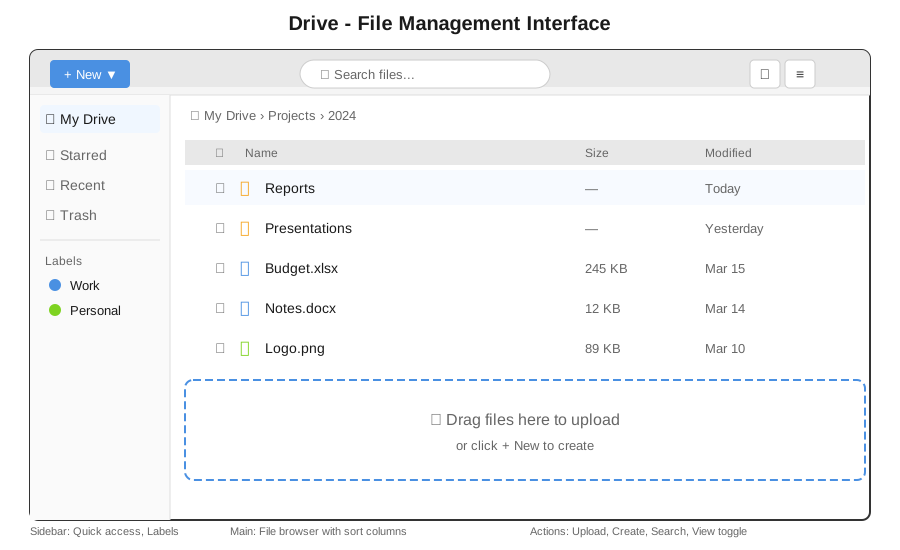
Drive is your file storage - like Google Drive or OneDrive. Store documents, images, spreadsheets, and any file you need.
### The Drive Interface
 ### Creating and Uploading
**Upload Files:**
1. Click **+ New** button
2. Select **Upload Files**
3. Choose files from your computer
4. *Or:* Drag files directly into Drive
**Create New Folder:**
1. Click **+ New**
2. Select **New Folder**
3. Type the folder name
4. Press Enter
### Working with Files
**Open a file:** Double-click it
**Select files:** Click the checkbox beside the file name
**Multiple selection:** Hold `Ctrl` (or `Cmd` on Mac) and click files
**Right-click menu options:**
- 📂 Open
- ⬇️ Download
- ✏️ Rename
- 📋 Copy
- 📁 Move to...
- ⭐ Add to Starred
- 🔗 Share
- 🗑 Delete
### View Options
| Button | View | Best For |
|--------|------|----------|
| ⊞ | Grid view | Images and visual files |
| ≡ | List view | Documents and details |
### Keyboard Shortcuts for Drive
| Shortcut | Action |
|----------|--------|
| `Ctrl+U` | Upload files |
| `Ctrl+N` | New folder |
| `Delete` | Move to trash |
| `Ctrl+C` | Copy |
| `Ctrl+V` | Paste |
| `Enter` | Open selected |
---
## Part IV: Tasks - To-Do Management
### What Tasks Does
Tasks helps you track what needs to be done. Create to-do lists, set due dates, and mark items complete.
### The Tasks Interface
### Creating and Uploading
**Upload Files:**
1. Click **+ New** button
2. Select **Upload Files**
3. Choose files from your computer
4. *Or:* Drag files directly into Drive
**Create New Folder:**
1. Click **+ New**
2. Select **New Folder**
3. Type the folder name
4. Press Enter
### Working with Files
**Open a file:** Double-click it
**Select files:** Click the checkbox beside the file name
**Multiple selection:** Hold `Ctrl` (or `Cmd` on Mac) and click files
**Right-click menu options:**
- 📂 Open
- ⬇️ Download
- ✏️ Rename
- 📋 Copy
- 📁 Move to...
- ⭐ Add to Starred
- 🔗 Share
- 🗑 Delete
### View Options
| Button | View | Best For |
|--------|------|----------|
| ⊞ | Grid view | Images and visual files |
| ≡ | List view | Documents and details |
### Keyboard Shortcuts for Drive
| Shortcut | Action |
|----------|--------|
| `Ctrl+U` | Upload files |
| `Ctrl+N` | New folder |
| `Delete` | Move to trash |
| `Ctrl+C` | Copy |
| `Ctrl+V` | Paste |
| `Enter` | Open selected |
---
## Part IV: Tasks - To-Do Management
### What Tasks Does
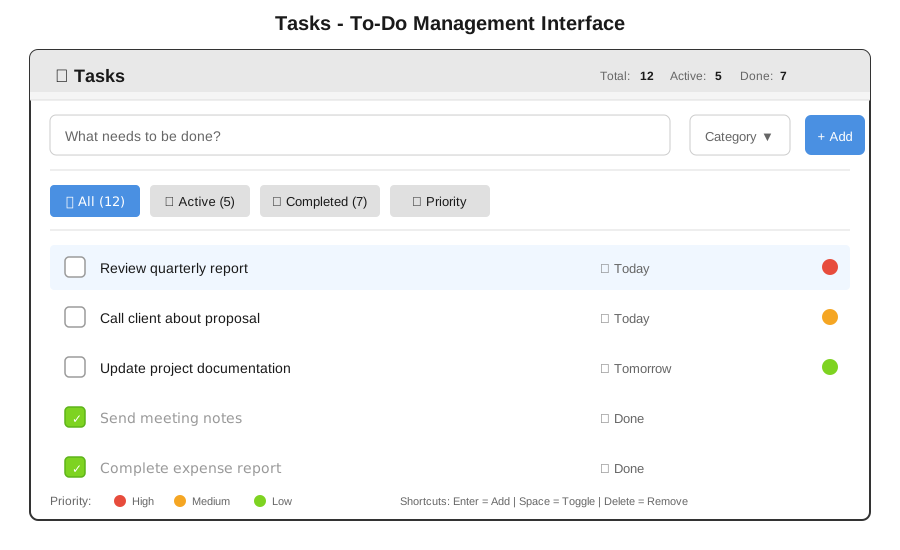
Tasks helps you track what needs to be done. Create to-do lists, set due dates, and mark items complete.
### The Tasks Interface
 ### Adding a Task
1. Type your task in the input box
2. *(Optional)* Select a category: Work, Personal, Shopping, Health
3. *(Optional)* Set a due date
4. Click **+ Add** or press Enter
**Pro tip:** Be specific! Instead of "Work on project", write "Draft introduction section for project proposal"
### Task Priorities
| Color | Priority | When to Use |
|-------|----------|-------------|
| 🔴 Red | High | Must do today |
| 🟡 Yellow | Medium | Important but not urgent |
| 🟢 Green | Low | Can wait |
### Completing Tasks
- **Click the checkbox** to mark a task done
- Completed tasks move to the "Completed" tab
- Feel the satisfaction! ✓
### Filter Tabs
| Tab | Shows |
|-----|-------|
| **All** | Everything |
| **Active** | Tasks not yet done |
| **Completed** | Finished tasks |
| **Priority** | High-priority tasks only |
### Creating Tasks from Chat
In Chat, just say:
```
You: Create a task to review the budget by Friday
Bot: Task created: "Review the budget" - Due: Friday
```
---
## Part V: Mail - Email Management
### What Mail Does
Mail connects to your email accounts so you can read, write, and organize emails without leaving the Suite.
### The Mail Interface
### Adding a Task
1. Type your task in the input box
2. *(Optional)* Select a category: Work, Personal, Shopping, Health
3. *(Optional)* Set a due date
4. Click **+ Add** or press Enter
**Pro tip:** Be specific! Instead of "Work on project", write "Draft introduction section for project proposal"
### Task Priorities
| Color | Priority | When to Use |
|-------|----------|-------------|
| 🔴 Red | High | Must do today |
| 🟡 Yellow | Medium | Important but not urgent |
| 🟢 Green | Low | Can wait |
### Completing Tasks
- **Click the checkbox** to mark a task done
- Completed tasks move to the "Completed" tab
- Feel the satisfaction! ✓
### Filter Tabs
| Tab | Shows |
|-----|-------|
| **All** | Everything |
| **Active** | Tasks not yet done |
| **Completed** | Finished tasks |
| **Priority** | High-priority tasks only |
### Creating Tasks from Chat
In Chat, just say:
```
You: Create a task to review the budget by Friday
Bot: Task created: "Review the budget" - Due: Friday
```
---
## Part V: Mail - Email Management
### What Mail Does
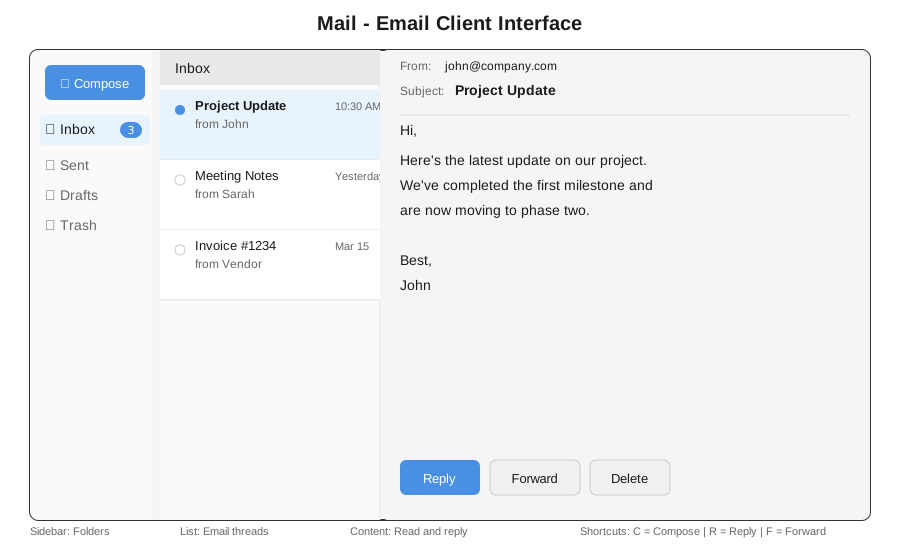
Mail connects to your email accounts so you can read, write, and organize emails without leaving the Suite.
### The Mail Interface
 ### Reading Email
1. Click on **Mail** in the Apps menu
2. Click any email in the list to read it
3. The full email appears on the right
### Composing Email
1. Click **✏ Compose**
2. Fill in the fields:
- **To:** recipient's email
- **Subject:** what it's about
- **Body:** your message
3. Click **Send**
**AI-Assisted Writing:**
```
You: Help me write an email to reschedule tomorrow's meeting
Bot: Here's a draft:
To: [recipient]
Subject: Request to Reschedule Meeting
Hi [Name],
I hope this message finds you well. Would it be
possible to reschedule our meeting tomorrow?
I have an unexpected conflict.
Please let me know what times work for you
later this week.
Thank you for understanding.
```
### Email Folders
| Folder | Purpose |
|--------|---------|
| **Inbox** | New and unread messages |
| **Sent** | Emails you've sent |
| **Drafts** | Unfinished emails |
| **Trash** | Deleted emails (emptied after 30 days) |
### Email Actions
| Button | Action |
|--------|--------|
| **Reply** | Respond to sender |
| **Reply All** | Respond to everyone |
| **Forward** | Send to someone else |
| **Delete** | Move to Trash |
| **Archive** | Remove from Inbox but keep |
---
## Part VI: Calendar - Scheduling
### What Calendar Does
Calendar shows your schedule, meetings, and events. Plan your day, week, or month at a glance.
### The Calendar Interface
### Reading Email
1. Click on **Mail** in the Apps menu
2. Click any email in the list to read it
3. The full email appears on the right
### Composing Email
1. Click **✏ Compose**
2. Fill in the fields:
- **To:** recipient's email
- **Subject:** what it's about
- **Body:** your message
3. Click **Send**
**AI-Assisted Writing:**
```
You: Help me write an email to reschedule tomorrow's meeting
Bot: Here's a draft:
To: [recipient]
Subject: Request to Reschedule Meeting
Hi [Name],
I hope this message finds you well. Would it be
possible to reschedule our meeting tomorrow?
I have an unexpected conflict.
Please let me know what times work for you
later this week.
Thank you for understanding.
```
### Email Folders
| Folder | Purpose |
|--------|---------|
| **Inbox** | New and unread messages |
| **Sent** | Emails you've sent |
| **Drafts** | Unfinished emails |
| **Trash** | Deleted emails (emptied after 30 days) |
### Email Actions
| Button | Action |
|--------|--------|
| **Reply** | Respond to sender |
| **Reply All** | Respond to everyone |
| **Forward** | Send to someone else |
| **Delete** | Move to Trash |
| **Archive** | Remove from Inbox but keep |
---
## Part VI: Calendar - Scheduling
### What Calendar Does
Calendar shows your schedule, meetings, and events. Plan your day, week, or month at a glance.
### The Calendar Interface
 ### Creating an Event
**Method 1: Click and Create**
1. Click on a day/time slot
2. Enter event details
3. Click Save
**Method 2: Ask the AI**
```
You: Schedule a team meeting for next Tuesday at 2pm
Bot: Event created:
📅 Team Meeting
🕐 Tuesday, March 19 at 2:00 PM
⏱ Duration: 1 hour
```
### Event Details
When creating an event, you can set:
- **Title** - What the event is
- **Date & Time** - When it happens
- **Duration** - How long it lasts
- **Location** - Where (room or video link)
- **Attendees** - Who to invite
- **Reminder** - When to notify you
- **Repeat** - Daily, weekly, monthly
### Calendar Views
| View | Shows | Best For |
|------|-------|----------|
| **Day** | Hour by hour | Detailed daily planning |
| **Week** | 7 days | Seeing your week ahead |
| **Month** | Full month | Long-term planning |
### Keyboard Navigation
| Key | Action |
|-----|--------|
| `←` `→` | Previous/Next period |
| `T` | Jump to Today |
| `D` | Day view |
| `W` | Week view |
| `M` | Month view |
---
## Part VII: Meet - Video Calls
### What Meet Does
Meet lets you have video calls with one person or many. Share your screen, record meetings, and get AI transcriptions.
### Starting a Meeting
**Start Instant Meeting:**
1. Click **Meet** in Apps menu
2. Click **Start Meeting**
3. Share the link with others
**Schedule for Later:**
```
You: Schedule a video call with the team for tomorrow at 10am
Bot: Meeting scheduled:
🎥 Team Video Call
📅 Tomorrow at 10:00 AM
🔗 Link: meet.bot/abc-defg-hij
Shall I send invites to the team?
```
### The Meeting Interface
### Creating an Event
**Method 1: Click and Create**
1. Click on a day/time slot
2. Enter event details
3. Click Save
**Method 2: Ask the AI**
```
You: Schedule a team meeting for next Tuesday at 2pm
Bot: Event created:
📅 Team Meeting
🕐 Tuesday, March 19 at 2:00 PM
⏱ Duration: 1 hour
```
### Event Details
When creating an event, you can set:
- **Title** - What the event is
- **Date & Time** - When it happens
- **Duration** - How long it lasts
- **Location** - Where (room or video link)
- **Attendees** - Who to invite
- **Reminder** - When to notify you
- **Repeat** - Daily, weekly, monthly
### Calendar Views
| View | Shows | Best For |
|------|-------|----------|
| **Day** | Hour by hour | Detailed daily planning |
| **Week** | 7 days | Seeing your week ahead |
| **Month** | Full month | Long-term planning |
### Keyboard Navigation
| Key | Action |
|-----|--------|
| `←` `→` | Previous/Next period |
| `T` | Jump to Today |
| `D` | Day view |
| `W` | Week view |
| `M` | Month view |
---
## Part VII: Meet - Video Calls
### What Meet Does
Meet lets you have video calls with one person or many. Share your screen, record meetings, and get AI transcriptions.
### Starting a Meeting
**Start Instant Meeting:**
1. Click **Meet** in Apps menu
2. Click **Start Meeting**
3. Share the link with others
**Schedule for Later:**
```
You: Schedule a video call with the team for tomorrow at 10am
Bot: Meeting scheduled:
🎥 Team Video Call
📅 Tomorrow at 10:00 AM
🔗 Link: meet.bot/abc-defg-hij
Shall I send invites to the team?
```
### The Meeting Interface
 ### Meeting Controls
| Button | Function |
|--------|----------|
| 🎤 **Mute** | Turn microphone on/off |
| 📹 **Video** | Turn camera on/off |
| 🖥 **Share** | Share your screen |
| 🔴 **Record** | Record the meeting |
| 📝 **Transcribe** | Get live captions |
| 💬 **Chat** | Open meeting chat |
| 👥 **Participants** | See who's in the call |
| 📞 **End** | Leave the meeting |
### Screen Sharing
1. Click **🖥 Share**
2. Choose what to share:
- **Entire Screen** - Everything you see
- **Window** - One application
- **Tab** - One browser tab
3. Click **Share**
4. Click **Stop Sharing** when done
### AI Features in Meetings
**Live Transcription:**
- Enable with the **📝 Transcribe** button
- Words appear as people speak
- Great for accessibility and note-taking
**Meeting Summary:**
After the meeting, ask:
```
You: Summarize today's project meeting
Bot: Meeting Summary:
Duration: 45 minutes
Participants: You, John, Sarah
Key Points:
• Project deadline moved to April 15
• John will handle client communication
• Sarah completing design by Friday
Action Items:
• [You] Review budget proposal
• [John] Send client update
• [Sarah] Share design mockups
```
---
## Part VIII: Paper - AI Writing
### What Paper Does
Paper is your writing space with AI assistance. Write documents, notes, reports - and let AI help you write better.
### The Paper Interface
### Meeting Controls
| Button | Function |
|--------|----------|
| 🎤 **Mute** | Turn microphone on/off |
| 📹 **Video** | Turn camera on/off |
| 🖥 **Share** | Share your screen |
| 🔴 **Record** | Record the meeting |
| 📝 **Transcribe** | Get live captions |
| 💬 **Chat** | Open meeting chat |
| 👥 **Participants** | See who's in the call |
| 📞 **End** | Leave the meeting |
### Screen Sharing
1. Click **🖥 Share**
2. Choose what to share:
- **Entire Screen** - Everything you see
- **Window** - One application
- **Tab** - One browser tab
3. Click **Share**
4. Click **Stop Sharing** when done
### AI Features in Meetings
**Live Transcription:**
- Enable with the **📝 Transcribe** button
- Words appear as people speak
- Great for accessibility and note-taking
**Meeting Summary:**
After the meeting, ask:
```
You: Summarize today's project meeting
Bot: Meeting Summary:
Duration: 45 minutes
Participants: You, John, Sarah
Key Points:
• Project deadline moved to April 15
• John will handle client communication
• Sarah completing design by Friday
Action Items:
• [You] Review budget proposal
• [John] Send client update
• [Sarah] Share design mockups
```
---
## Part VIII: Paper - AI Writing
### What Paper Does
Paper is your writing space with AI assistance. Write documents, notes, reports - and let AI help you write better.
### The Paper Interface
 ### Creating a Document
1. Click **+ New** in the sidebar
2. Choose a template:
- **Blank** - Start fresh
- **Meeting Notes** - Pre-formatted for meetings
- **To-Do List** - Checkbox format
- **Research** - Sections for sources
### Formatting Toolbar
| Button | Function | Shortcut |
|--------|----------|----------|
| **B** | Bold | `Ctrl+B` |
| **I** | Italic | `Ctrl+I` |
| **U** | Underline | `Ctrl+U` |
| **H1** | Heading 1 | `Ctrl+1` |
| **H2** | Heading 2 | `Ctrl+2` |
| **•** | Bullet list | `Ctrl+Shift+8` |
| **―** | Numbered list | `Ctrl+Shift+7` |
| **🔗** | Insert link | `Ctrl+K` |
| **📷** | Insert image | - |
### AI Writing Assistant ✨
Click the **AI ✨** button or type `/ai` for AI help:
**Commands:**
```
/ai improve → Make the text better
/ai shorter → Make it more concise
/ai longer → Expand with more detail
/ai formal → Make it professional
/ai friendly → Make it casual
/ai translate → Translate to another language
/ai summarize → Create a summary
```
**Example:**
```
You wrote: "The thing we need to do is make the stuff better"
/ai formal
AI suggests: "Our objective is to enhance the quality of
our deliverables to meet higher standards."
```
### Auto-Save
Paper saves automatically as you type. Look for:
- **"Saving..."** - Currently saving
- **"Saved"** - All changes saved
- **"Offline"** - Will save when connected
---
## Part IX: Research - AI Search
### What Research Does
Research is like having a research assistant. Search the web, your documents, and knowledge bases - then get AI-synthesized answers.
### The Research Interface
### Creating a Document
1. Click **+ New** in the sidebar
2. Choose a template:
- **Blank** - Start fresh
- **Meeting Notes** - Pre-formatted for meetings
- **To-Do List** - Checkbox format
- **Research** - Sections for sources
### Formatting Toolbar
| Button | Function | Shortcut |
|--------|----------|----------|
| **B** | Bold | `Ctrl+B` |
| **I** | Italic | `Ctrl+I` |
| **U** | Underline | `Ctrl+U` |
| **H1** | Heading 1 | `Ctrl+1` |
| **H2** | Heading 2 | `Ctrl+2` |
| **•** | Bullet list | `Ctrl+Shift+8` |
| **―** | Numbered list | `Ctrl+Shift+7` |
| **🔗** | Insert link | `Ctrl+K` |
| **📷** | Insert image | - |
### AI Writing Assistant ✨
Click the **AI ✨** button or type `/ai` for AI help:
**Commands:**
```
/ai improve → Make the text better
/ai shorter → Make it more concise
/ai longer → Expand with more detail
/ai formal → Make it professional
/ai friendly → Make it casual
/ai translate → Translate to another language
/ai summarize → Create a summary
```
**Example:**
```
You wrote: "The thing we need to do is make the stuff better"
/ai formal
AI suggests: "Our objective is to enhance the quality of
our deliverables to meet higher standards."
```
### Auto-Save
Paper saves automatically as you type. Look for:
- **"Saving..."** - Currently saving
- **"Saved"** - All changes saved
- **"Offline"** - Will save when connected
---
## Part IX: Research - AI Search
### What Research Does
Research is like having a research assistant. Search the web, your documents, and knowledge bases - then get AI-synthesized answers.
### The Research Interface
 ### Search Modes
| Mode | Icon | Searches |
|------|------|----------|
| **All** | 🌐 | Everything |
| **Academic** | 📚 | Research papers, journals |
| **Code** | 💻 | Documentation, code examples |
| **Internal** | 🏠 | Your company's knowledge base |
### Using Research
1. Type your question in the search box
2. Select a focus mode (optional)
3. Press Enter
4. Read the AI-synthesized answer
5. Click sources to see original content
### Collections
Save important searches and sources:
1. Click **+ New Collection**
2. Name it (e.g., "Q1 Project Research")
3. Add sources by clicking **Save to Collection**
4. Access anytime from the sidebar
### Pro Tips
**Be specific:**
- ❌ "marketing"
- ✅ "B2B SaaS marketing strategies for startups under 50 employees"
**Use follow-up questions:**
```
Search: What is machine learning?
Follow-up: How is it different from deep learning?
Follow-up: What are practical business applications?
```
---
## Part X: Analytics - Reports & Insights
### What Analytics Does
Analytics shows you reports about usage, conversations, and performance. Understand how the bot is being used and what's working.
### The Analytics Interface
### Search Modes
| Mode | Icon | Searches |
|------|------|----------|
| **All** | 🌐 | Everything |
| **Academic** | 📚 | Research papers, journals |
| **Code** | 💻 | Documentation, code examples |
| **Internal** | 🏠 | Your company's knowledge base |
### Using Research
1. Type your question in the search box
2. Select a focus mode (optional)
3. Press Enter
4. Read the AI-synthesized answer
5. Click sources to see original content
### Collections
Save important searches and sources:
1. Click **+ New Collection**
2. Name it (e.g., "Q1 Project Research")
3. Add sources by clicking **Save to Collection**
4. Access anytime from the sidebar
### Pro Tips
**Be specific:**
- ❌ "marketing"
- ✅ "B2B SaaS marketing strategies for startups under 50 employees"
**Use follow-up questions:**
```
Search: What is machine learning?
Follow-up: How is it different from deep learning?
Follow-up: What are practical business applications?
```
---
## Part X: Analytics - Reports & Insights
### What Analytics Does
Analytics shows you reports about usage, conversations, and performance. Understand how the bot is being used and what's working.
### The Analytics Interface
 ### Key Metrics
| Metric | What It Means |
|--------|---------------|
| **Messages** | Total conversations |
| **Success Rate** | % of questions answered well |
| **Avg Response Time** | How fast the bot replies |
| **Users** | Number of people using the bot |
| **Popular Topics** | What people ask about most |
### Time Ranges
Select different periods to analyze:
- Last Hour
- Last 6 Hours
- Last 24 Hours
- Last 7 Days
- Last 30 Days
- Custom Range
### Exporting Data
Click **Export** to download reports as:
- **CSV** - For spreadsheets
- **PDF** - For sharing
- **JSON** - For developers
---
## Part XI: Designer - Visual Dialog Builder
### What Designer Does
Designer lets you create bot conversations visually - like VB6 form designer, but for conversations. Drag and drop blocks to build dialogs without coding.
### The Designer Interface
### Key Metrics
| Metric | What It Means |
|--------|---------------|
| **Messages** | Total conversations |
| **Success Rate** | % of questions answered well |
| **Avg Response Time** | How fast the bot replies |
| **Users** | Number of people using the bot |
| **Popular Topics** | What people ask about most |
### Time Ranges
Select different periods to analyze:
- Last Hour
- Last 6 Hours
- Last 24 Hours
- Last 7 Days
- Last 30 Days
- Custom Range
### Exporting Data
Click **Export** to download reports as:
- **CSV** - For spreadsheets
- **PDF** - For sharing
- **JSON** - For developers
---
## Part XI: Designer - Visual Dialog Builder
### What Designer Does
Designer lets you create bot conversations visually - like VB6 form designer, but for conversations. Drag and drop blocks to build dialogs without coding.
### The Designer Interface
 ### Building a Dialog
**Step 1: Drag Blocks**
- Drag from Toolbox to Canvas
- Blocks snap to grid
**Step 2: Connect Blocks**
- Drag from output port (●) to input port
- Lines show conversation flow
**Step 3: Configure Properties**
- Click a block
- Edit settings in Properties panel
**Step 4: Export**
- Click **Export to .bas**
- Save your dialog file
### Block Types
| Block | Icon | Purpose | Example |
|-------|------|---------|---------|
| **TALK** | 💬 | Bot speaks | "Welcome! How can I help?" |
| **HEAR** | 👂 | Wait for user input | Store response in `name` |
| **SET** | 📝 | Set a variable | `total = price * quantity` |
| **IF** | 🔀 | Make decisions | If age > 18 then... |
| **FOR** | 🔄 | Repeat for items | For each item in cart... |
| **SWITCH** | 🔃 | Multiple choices | Switch on category... |
| **CALL** | 📞 | Call another dialog | Call "checkout" |
| **SEND MAIL** | 📧 | Send email | Send confirmation |
| **SAVE** | 💾 | Save data | Save to database |
| **WAIT** | ⏱ | Pause | Wait 5 seconds |
### Example: Simple Greeting Dialog
The Designer canvas shows flow diagrams like the one in the interface above. A simple greeting dialog flows from a TALK node ("What's your name?") to a HEAR node (capturing the name as a string variable) to another TALK node ("Nice to meet you, {name}!").
**Generated Code:**
```basic
TALK "What's your name?"
HEAR name AS STRING
TALK "Nice to meet you, " + name + "!"
```
### Keyboard Shortcuts in Designer
| Shortcut | Action |
|----------|--------|
| `Ctrl+S` | Save |
| `Ctrl+O` | Open file |
| `Ctrl+Z` | Undo |
| `Ctrl+Y` | Redo |
| `Ctrl+C` | Copy block |
| `Ctrl+V` | Paste block |
| `Delete` | Delete selected |
| `Escape` | Deselect |
---
## Part XII: Sources - Prompts & Templates
### What Sources Does
Sources is your library of prompts, templates, tools, and AI models. Find and use pre-built components to extend your bot.
### The Sources Interface
### Building a Dialog
**Step 1: Drag Blocks**
- Drag from Toolbox to Canvas
- Blocks snap to grid
**Step 2: Connect Blocks**
- Drag from output port (●) to input port
- Lines show conversation flow
**Step 3: Configure Properties**
- Click a block
- Edit settings in Properties panel
**Step 4: Export**
- Click **Export to .bas**
- Save your dialog file
### Block Types
| Block | Icon | Purpose | Example |
|-------|------|---------|---------|
| **TALK** | 💬 | Bot speaks | "Welcome! How can I help?" |
| **HEAR** | 👂 | Wait for user input | Store response in `name` |
| **SET** | 📝 | Set a variable | `total = price * quantity` |
| **IF** | 🔀 | Make decisions | If age > 18 then... |
| **FOR** | 🔄 | Repeat for items | For each item in cart... |
| **SWITCH** | 🔃 | Multiple choices | Switch on category... |
| **CALL** | 📞 | Call another dialog | Call "checkout" |
| **SEND MAIL** | 📧 | Send email | Send confirmation |
| **SAVE** | 💾 | Save data | Save to database |
| **WAIT** | ⏱ | Pause | Wait 5 seconds |
### Example: Simple Greeting Dialog
The Designer canvas shows flow diagrams like the one in the interface above. A simple greeting dialog flows from a TALK node ("What's your name?") to a HEAR node (capturing the name as a string variable) to another TALK node ("Nice to meet you, {name}!").
**Generated Code:**
```basic
TALK "What's your name?"
HEAR name AS STRING
TALK "Nice to meet you, " + name + "!"
```
### Keyboard Shortcuts in Designer
| Shortcut | Action |
|----------|--------|
| `Ctrl+S` | Save |
| `Ctrl+O` | Open file |
| `Ctrl+Z` | Undo |
| `Ctrl+Y` | Redo |
| `Ctrl+C` | Copy block |
| `Ctrl+V` | Paste block |
| `Delete` | Delete selected |
| `Escape` | Deselect |
---
## Part XII: Sources - Prompts & Templates
### What Sources Does
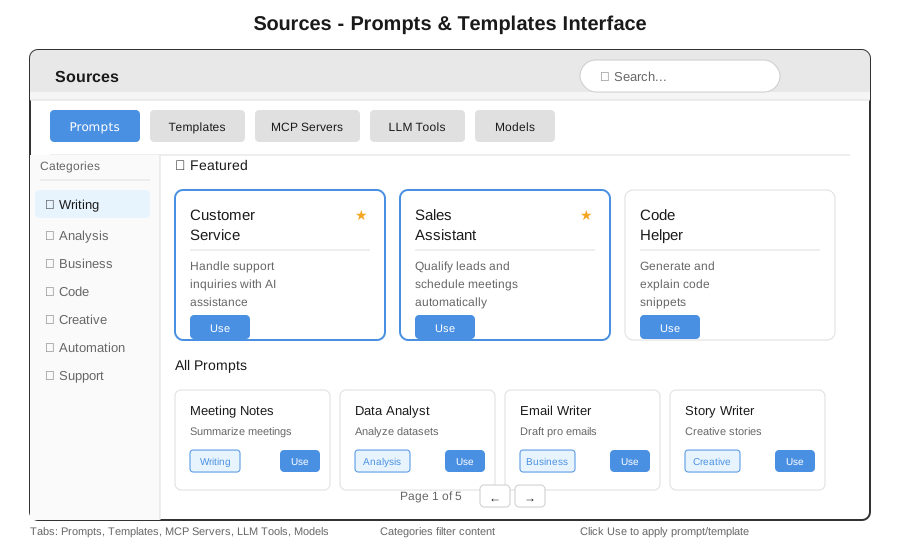
Sources is your library of prompts, templates, tools, and AI models. Find and use pre-built components to extend your bot.
### The Sources Interface
 ### Tabs Explained
| Tab | Contains | Use For |
|-----|----------|---------|
| **Prompts** | Pre-written AI instructions | Starting conversations |
| **Templates** | Complete bot packages | Full solutions |
| **MCP Servers** | External tool connections | Integrations |
| **LLM Tools** | AI functions | Extending capabilities |
| **Models** | AI model options | Choosing AI provider |
### Using a Prompt
1. Browse or search prompts
2. Click on a prompt card
3. Click **Use** to apply it
4. Customize if needed
### Installing a Template
1. Go to **Templates** tab
2. Find a template (e.g., "CRM Contacts")
3. Click **Install**
4. Configure settings
5. Template is now active
### Available Models
| Model | Provider | Best For |
|-------|----------|----------|
| GPT-4o | OpenAI | General tasks, vision |
| Claude 3.5 | Anthropic | Analysis, coding |
| Gemini 1.5 | Google | Long documents |
| Llama 3.1 | Meta | Open source, privacy |
---
## Part XIII: Tools - System Utilities
### Compliance Scanner
### Tabs Explained
| Tab | Contains | Use For |
|-----|----------|---------|
| **Prompts** | Pre-written AI instructions | Starting conversations |
| **Templates** | Complete bot packages | Full solutions |
| **MCP Servers** | External tool connections | Integrations |
| **LLM Tools** | AI functions | Extending capabilities |
| **Models** | AI model options | Choosing AI provider |
### Using a Prompt
1. Browse or search prompts
2. Click on a prompt card
3. Click **Use** to apply it
4. Customize if needed
### Installing a Template
1. Go to **Templates** tab
2. Find a template (e.g., "CRM Contacts")
3. Click **Install**
4. Configure settings
5. Template is now active
### Available Models
| Model | Provider | Best For |
|-------|----------|----------|
| GPT-4o | OpenAI | General tasks, vision |
| Claude 3.5 | Anthropic | Analysis, coding |
| Gemini 1.5 | Google | Long documents |
| Llama 3.1 | Meta | Open source, privacy |
---
## Part XIII: Tools - System Utilities
### Compliance Scanner
 **What It Checks:**
- Hardcoded passwords
- Exposed API keys
- SQL injection risks
- Deprecated keywords
- Security best practices
---
## Part XIV: Settings
### Accessing Settings
1. Click your **avatar** (top right)
2. Select **Settings**
### Setting Categories
**Profile:**
- Display name
- Avatar image
- Email address
- Language preference
**Notifications:**
- Email notifications
- Desktop alerts
- Sound preferences
**Appearance:**
- Theme (Light/Dark/Auto)
- Accent color
- Font size
**Privacy:**
- Data retention
- Conversation history
- Usage analytics
**Connections:**
- Email accounts
- Calendar sync
- Cloud storage
---
## Part XV: Keyboard Shortcuts Reference
### Global Shortcuts
| Shortcut | Action |
|----------|--------|
| `Alt+1` | Open Chat |
| `Alt+2` | Open Drive |
| `Alt+3` | Open Tasks |
| `Alt+4` | Open Mail |
| `Alt+5` | Open Calendar |
| `Escape` | Close dialog/menu |
| `/` | Focus search |
| `Ctrl+K` | Command palette |
### Common Shortcuts
| Shortcut | Action |
|----------|--------|
| `Ctrl+S` | Save |
| `Ctrl+Z` | Undo |
| `Ctrl+Y` | Redo |
| `Ctrl+C` | Copy |
| `Ctrl+V` | Paste |
| `Ctrl+A` | Select all |
| `Ctrl+F` | Find |
---
## Part XVI: Tips & Best Practices
### Daily Workflow
**Morning:**
1. Open Suite
2. Check Chat for overnight messages
3. Review Tasks for the day
4. Check Calendar for meetings
**During Work:**
- Use Chat for quick questions
- Upload files to Drive
- Update Tasks as you complete them
- Take notes in Paper
**End of Day:**
- Mark completed tasks done
- Archive old emails
- Review tomorrow's calendar
### Productivity Tips
**In Chat:**
- Be specific in your questions
- Use follow-up questions
- Say "summarize" for long responses
**In Drive:**
- Use folders to organize
- Star important files
- Use search instead of browsing
**In Tasks:**
- Break big tasks into smaller ones
- Set realistic due dates
- Use categories to organize
**In Mail:**
- Process emails once
- Archive instead of delete
- Use AI for drafting
### Getting Help
**Ask the Bot:**
```
You: How do I upload a file?
You: What keyboard shortcuts are there?
You: Help me with tasks
```
**Resources:**
- This manual
- In-app help (click ?)
- Support team
---
## Appendix A: Troubleshooting
### Common Issues
**Suite won't load:**
- Refresh the page (`F5` or `Ctrl+R`)
- Clear browser cache
- Try a different browser
**Files won't upload:**
- Check file size (max 100MB)
- Check internet connection
- Try a smaller file first
**Bot not responding:**
- Wait a few seconds
- Refresh the page
- Check internet connection
**Video/audio not working:**
- Allow camera/microphone in browser
- Check device permissions
- Try different browser
### Error Messages
| Message | Solution |
|---------|----------|
| "Connection lost" | Check internet, refresh page |
| "File too large" | Reduce file size |
| "Permission denied" | Contact administrator |
| "Session expired" | Log in again |
---
## Appendix B: Glossary
| Term | Definition |
|------|------------|
| **Bot** | AI assistant that responds to your messages |
| **Dialog** | A conversation flow or script |
| **HTMX** | Technology that makes pages interactive |
| **KB** | Knowledge Base - stored information |
| **MCP** | Model Context Protocol - tool connections |
| **Suite** | The complete workspace application |
| **Template** | Pre-built bot configuration |
---
---
*© General Bots - Built with ❤️ and AI*
*For the latest documentation, visit the [online manual](../chapter-04-gbui/README.md)*
**What It Checks:**
- Hardcoded passwords
- Exposed API keys
- SQL injection risks
- Deprecated keywords
- Security best practices
---
## Part XIV: Settings
### Accessing Settings
1. Click your **avatar** (top right)
2. Select **Settings**
### Setting Categories
**Profile:**
- Display name
- Avatar image
- Email address
- Language preference
**Notifications:**
- Email notifications
- Desktop alerts
- Sound preferences
**Appearance:**
- Theme (Light/Dark/Auto)
- Accent color
- Font size
**Privacy:**
- Data retention
- Conversation history
- Usage analytics
**Connections:**
- Email accounts
- Calendar sync
- Cloud storage
---
## Part XV: Keyboard Shortcuts Reference
### Global Shortcuts
| Shortcut | Action |
|----------|--------|
| `Alt+1` | Open Chat |
| `Alt+2` | Open Drive |
| `Alt+3` | Open Tasks |
| `Alt+4` | Open Mail |
| `Alt+5` | Open Calendar |
| `Escape` | Close dialog/menu |
| `/` | Focus search |
| `Ctrl+K` | Command palette |
### Common Shortcuts
| Shortcut | Action |
|----------|--------|
| `Ctrl+S` | Save |
| `Ctrl+Z` | Undo |
| `Ctrl+Y` | Redo |
| `Ctrl+C` | Copy |
| `Ctrl+V` | Paste |
| `Ctrl+A` | Select all |
| `Ctrl+F` | Find |
---
## Part XVI: Tips & Best Practices
### Daily Workflow
**Morning:**
1. Open Suite
2. Check Chat for overnight messages
3. Review Tasks for the day
4. Check Calendar for meetings
**During Work:**
- Use Chat for quick questions
- Upload files to Drive
- Update Tasks as you complete them
- Take notes in Paper
**End of Day:**
- Mark completed tasks done
- Archive old emails
- Review tomorrow's calendar
### Productivity Tips
**In Chat:**
- Be specific in your questions
- Use follow-up questions
- Say "summarize" for long responses
**In Drive:**
- Use folders to organize
- Star important files
- Use search instead of browsing
**In Tasks:**
- Break big tasks into smaller ones
- Set realistic due dates
- Use categories to organize
**In Mail:**
- Process emails once
- Archive instead of delete
- Use AI for drafting
### Getting Help
**Ask the Bot:**
```
You: How do I upload a file?
You: What keyboard shortcuts are there?
You: Help me with tasks
```
**Resources:**
- This manual
- In-app help (click ?)
- Support team
---
## Appendix A: Troubleshooting
### Common Issues
**Suite won't load:**
- Refresh the page (`F5` or `Ctrl+R`)
- Clear browser cache
- Try a different browser
**Files won't upload:**
- Check file size (max 100MB)
- Check internet connection
- Try a smaller file first
**Bot not responding:**
- Wait a few seconds
- Refresh the page
- Check internet connection
**Video/audio not working:**
- Allow camera/microphone in browser
- Check device permissions
- Try different browser
### Error Messages
| Message | Solution |
|---------|----------|
| "Connection lost" | Check internet, refresh page |
| "File too large" | Reduce file size |
| "Permission denied" | Contact administrator |
| "Session expired" | Log in again |
---
## Appendix B: Glossary
| Term | Definition |
|------|------------|
| **Bot** | AI assistant that responds to your messages |
| **Dialog** | A conversation flow or script |
| **HTMX** | Technology that makes pages interactive |
| **KB** | Knowledge Base - stored information |
| **MCP** | Model Context Protocol - tool connections |
| **Suite** | The complete workspace application |
| **Template** | Pre-built bot configuration |
---
---
*© General Bots - Built with ❤️ and AI*
*For the latest documentation, visit the [online manual](../chapter-04-gbui/README.md)*