 ---
## Overview
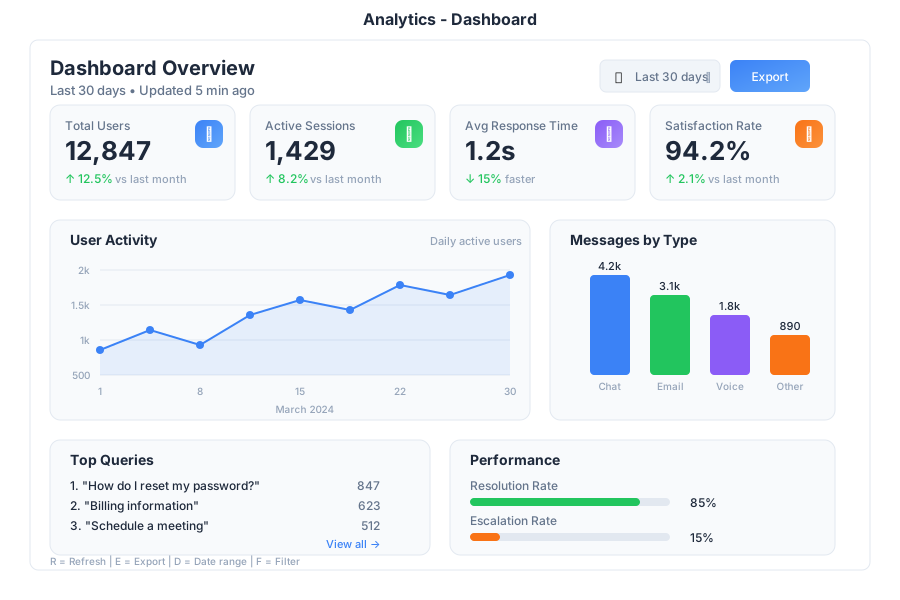
Analytics is the data visualization and reporting app in General Bots Suite. Track key metrics, build custom dashboards, generate reports, and get AI-powered insights about your business. Analytics turns your data into actionable information.
---
## Features
### Dashboard Overview
Dashboards are collections of widgets that display your data visually.
**Default Dashboards:**
| Dashboard | What It Shows |
|-----------|---------------|
| **Overview** | Key metrics across all areas |
| **Sales** | Revenue, deals, pipeline |
| **Marketing** | Campaigns, leads, conversion |
| **Support** | Tickets, response time, satisfaction |
| **HR** | Headcount, hiring, retention |
---
### Creating a Dashboard
**Step 1: Click "+ New" in the sidebar**
Fill in the dashboard details:
- **Dashboard Name** - A descriptive title (e.g., "Q2 Performance")
- **Description** - Optional context for the dashboard
- **Template** - Start blank, use a template, or copy from existing
**Step 2: Add Widgets**
Click **+ Widget** and choose a visualization type.
---
### Widget Types
**Numbers:**
- **Number** - Single metric display
- **Comparison** - Metric with percentage change
- **Progress** - Goal tracking with progress bar
**Charts:**
- **Line** - Trends over time
- **Bar** - Category comparisons
- **Area** - Volume visualization
- **Pie** - Proportional breakdown
**Tables & Lists:**
- **Table** - Data grid with sorting
- **Leaderboard** - Ranked list
- **List** - Simple bullet items
**Special:**
- **Geography** - Map visualization
- **Heatmap** - Intensity grid
- **AI Summary** - AI-generated insights
---
### Configuring Widgets
After selecting a widget type, configure the data source:
| Setting | Description |
|---------|-------------|
| **Title** | Widget display name |
| **Source** | Database or data connection |
| **Table** | Specific table to query |
| **X-Axis** | Horizontal dimension |
| **Y-Axis** | Vertical measure |
| **Group By** | Time period or category |
| **Aggregate** | Sum, Count, Average, etc. |
| **Filters** | Conditions to apply |
---
### Key Metric Cards
Display important numbers with context:
| Element | Purpose |
|---------|---------|
| **Value** | The main metric number |
| **Trend Arrow** | Up/down indicator |
| **Comparison** | vs last period |
| **Progress Bar** | Visual goal tracking |
| **Goal** | Target value |
**Color Indicators:**
| Color | Meaning |
|-------|---------|
| 🟢 Green (▲) | Positive trend / On target |
| 🔴 Red (▼) | Negative trend / Below target |
| 🟡 Yellow (─) | No change / Needs attention |
| ⚪ Gray | No comparison available |
---
### AI Insights ✨
Let AI analyze your data and surface insights:
**Insight Types:**
| Category | What It Shows |
|----------|---------------|
| **📈 Trends** | Patterns and momentum in your data |
| **⚠️ Alerts** | Issues that need attention |
| **💡 Recommendations** | Suggested actions |
| **🎯 Predictions** | Forecasts based on current data |
**Ask the AI:**
---
## Overview
Analytics is the data visualization and reporting app in General Bots Suite. Track key metrics, build custom dashboards, generate reports, and get AI-powered insights about your business. Analytics turns your data into actionable information.
---
## Features
### Dashboard Overview
Dashboards are collections of widgets that display your data visually.
**Default Dashboards:**
| Dashboard | What It Shows |
|-----------|---------------|
| **Overview** | Key metrics across all areas |
| **Sales** | Revenue, deals, pipeline |
| **Marketing** | Campaigns, leads, conversion |
| **Support** | Tickets, response time, satisfaction |
| **HR** | Headcount, hiring, retention |
---
### Creating a Dashboard
**Step 1: Click "+ New" in the sidebar**
Fill in the dashboard details:
- **Dashboard Name** - A descriptive title (e.g., "Q2 Performance")
- **Description** - Optional context for the dashboard
- **Template** - Start blank, use a template, or copy from existing
**Step 2: Add Widgets**
Click **+ Widget** and choose a visualization type.
---
### Widget Types
**Numbers:**
- **Number** - Single metric display
- **Comparison** - Metric with percentage change
- **Progress** - Goal tracking with progress bar
**Charts:**
- **Line** - Trends over time
- **Bar** - Category comparisons
- **Area** - Volume visualization
- **Pie** - Proportional breakdown
**Tables & Lists:**
- **Table** - Data grid with sorting
- **Leaderboard** - Ranked list
- **List** - Simple bullet items
**Special:**
- **Geography** - Map visualization
- **Heatmap** - Intensity grid
- **AI Summary** - AI-generated insights
---
### Configuring Widgets
After selecting a widget type, configure the data source:
| Setting | Description |
|---------|-------------|
| **Title** | Widget display name |
| **Source** | Database or data connection |
| **Table** | Specific table to query |
| **X-Axis** | Horizontal dimension |
| **Y-Axis** | Vertical measure |
| **Group By** | Time period or category |
| **Aggregate** | Sum, Count, Average, etc. |
| **Filters** | Conditions to apply |
---
### Key Metric Cards
Display important numbers with context:
| Element | Purpose |
|---------|---------|
| **Value** | The main metric number |
| **Trend Arrow** | Up/down indicator |
| **Comparison** | vs last period |
| **Progress Bar** | Visual goal tracking |
| **Goal** | Target value |
**Color Indicators:**
| Color | Meaning |
|-------|---------|
| 🟢 Green (▲) | Positive trend / On target |
| 🔴 Red (▼) | Negative trend / Below target |
| 🟡 Yellow (─) | No change / Needs attention |
| ⚪ Gray | No comparison available |
---
### AI Insights ✨
Let AI analyze your data and surface insights:
**Insight Types:**
| Category | What It Shows |
|----------|---------------|
| **📈 Trends** | Patterns and momentum in your data |
| **⚠️ Alerts** | Issues that need attention |
| **💡 Recommendations** | Suggested actions |
| **🎯 Predictions** | Forecasts based on current data |
**Ask the AI:**