 ---
## Overview
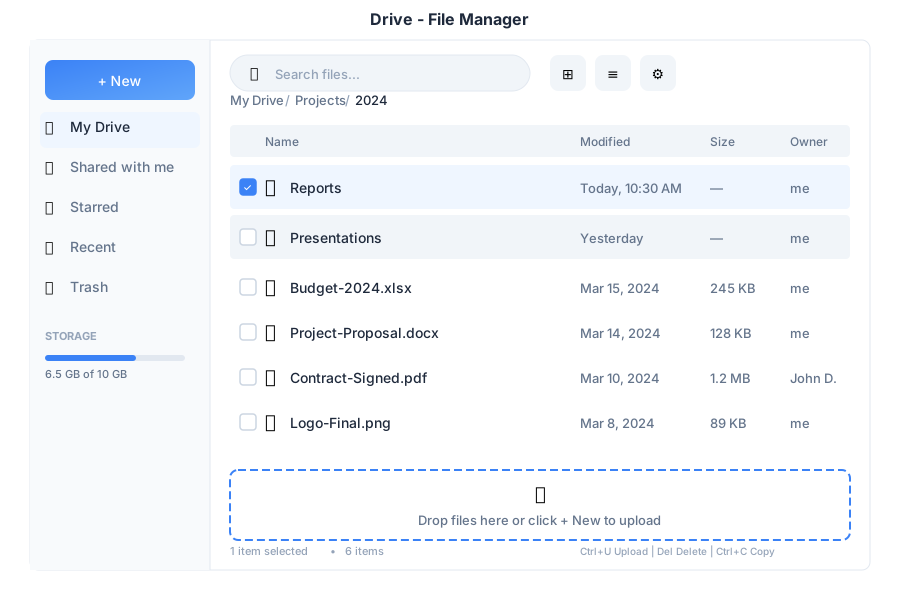
Drive is your personal cloud storage within General Bots Suite. Upload, organize, and share files with a familiar interface. Built with HTMX for smooth interactions and SeaweedFS for reliable object storage.
---
## Features
### Upload Files
**Drag and Drop:**
1. Drag files from your computer
2. Drop anywhere in the file area
3. Upload progress shows automatically
**Click to Upload:**
1. Click **+ New** button
2. Select **Upload Files** or **Upload Folder**
3. Choose files from file picker
### File Operations
| Action | How to Access |
|--------|---------------|
| **Open** | Double-click file |
| **Download** | Right-click > Download |
| **Rename** | Right-click > Rename |
| **Copy** | Right-click > Copy |
| **Move** | Right-click > Move to |
| **Star** | Right-click > Star |
| **Share** | Right-click > Share |
| **Delete** | Right-click > Delete |
### View Modes
| Mode | Description |
|------|-------------|
| **Grid** | Large thumbnails with previews |
| **List** | Detailed table with columns |
### Navigation
- **Breadcrumb**: Click any folder in the path to jump back
- **Sidebar**: Quick access to My Drive, Starred, Recent, Trash
- **Search**: Find files by name or content
### Labels & Organization
| Label | Icon | Use For |
|-------|------|---------|
| Work | 🔵 | Professional files |
| Personal | 🟢 | Private documents |
| Projects | 🟡 | Project-specific files |
| Custom | 🟣 | Create your own |
### File Sync (Desktop Only)
The desktop app provides bidirectional file synchronization between your local machine and cloud Drive using [rclone](https://rclone.org/).
**Requirements:**
- General Bots desktop app (Tauri)
- rclone installed on your system
**Setup:**
1. Install rclone: `https://rclone.org/install/`
2. Open Drive in the desktop app
3. Click **Settings** → **Sync**
4. Configure your sync folder (default: `~/GeneralBots`)
5. Click **Start Sync**
**Sync Controls:**
Located in the Drive sidebar under "Sync Status"
| Control | Description |
|---------|-------------|
| **Start** | Begin synchronization |
| **Stop** | Stop current sync |
| **Status** | Shows idle, syncing, or error |
**Sync Modes:**
| Mode | Description |
|------|-------------|
| **Push** | Local → Cloud only |
| **Pull** | Cloud → Local only |
| **Bisync** | Bidirectional (default) |
**Note:** Sync features are only available in the desktop app. Web users see an "unavailable" status as sync requires local filesystem access.
---
## Keyboard Shortcuts
| Shortcut | Action |
|----------|--------|
| `Enter` | Open selected file |
| `Delete` | Move to trash |
| `Ctrl+C` | Copy selected |
| `Ctrl+V` | Paste |
| `Ctrl+X` | Cut selected |
| `Ctrl+A` | Select all |
| `F2` | Rename selected |
| `Ctrl+F` | Search files |
| `Ctrl+U` | Upload files |
| `↑` / `↓` | Navigate files |
---
## Managing Files via Chat
---
## Overview
Drive is your personal cloud storage within General Bots Suite. Upload, organize, and share files with a familiar interface. Built with HTMX for smooth interactions and SeaweedFS for reliable object storage.
---
## Features
### Upload Files
**Drag and Drop:**
1. Drag files from your computer
2. Drop anywhere in the file area
3. Upload progress shows automatically
**Click to Upload:**
1. Click **+ New** button
2. Select **Upload Files** or **Upload Folder**
3. Choose files from file picker
### File Operations
| Action | How to Access |
|--------|---------------|
| **Open** | Double-click file |
| **Download** | Right-click > Download |
| **Rename** | Right-click > Rename |
| **Copy** | Right-click > Copy |
| **Move** | Right-click > Move to |
| **Star** | Right-click > Star |
| **Share** | Right-click > Share |
| **Delete** | Right-click > Delete |
### View Modes
| Mode | Description |
|------|-------------|
| **Grid** | Large thumbnails with previews |
| **List** | Detailed table with columns |
### Navigation
- **Breadcrumb**: Click any folder in the path to jump back
- **Sidebar**: Quick access to My Drive, Starred, Recent, Trash
- **Search**: Find files by name or content
### Labels & Organization
| Label | Icon | Use For |
|-------|------|---------|
| Work | 🔵 | Professional files |
| Personal | 🟢 | Private documents |
| Projects | 🟡 | Project-specific files |
| Custom | 🟣 | Create your own |
### File Sync (Desktop Only)
The desktop app provides bidirectional file synchronization between your local machine and cloud Drive using [rclone](https://rclone.org/).
**Requirements:**
- General Bots desktop app (Tauri)
- rclone installed on your system
**Setup:**
1. Install rclone: `https://rclone.org/install/`
2. Open Drive in the desktop app
3. Click **Settings** → **Sync**
4. Configure your sync folder (default: `~/GeneralBots`)
5. Click **Start Sync**
**Sync Controls:**
Located in the Drive sidebar under "Sync Status"
| Control | Description |
|---------|-------------|
| **Start** | Begin synchronization |
| **Stop** | Stop current sync |
| **Status** | Shows idle, syncing, or error |
**Sync Modes:**
| Mode | Description |
|------|-------------|
| **Push** | Local → Cloud only |
| **Pull** | Cloud → Local only |
| **Bisync** | Bidirectional (default) |
**Note:** Sync features are only available in the desktop app. Web users see an "unavailable" status as sync requires local filesystem access.
---
## Keyboard Shortcuts
| Shortcut | Action |
|----------|--------|
| `Enter` | Open selected file |
| `Delete` | Move to trash |
| `Ctrl+C` | Copy selected |
| `Ctrl+V` | Paste |
| `Ctrl+X` | Cut selected |
| `Ctrl+A` | Select all |
| `F2` | Rename selected |
| `Ctrl+F` | Search files |
| `Ctrl+U` | Upload files |
| `↑` / `↓` | Navigate files |
---
## Managing Files via Chat