
14 KiB
Paper - AI Writing
Your intelligent document editor
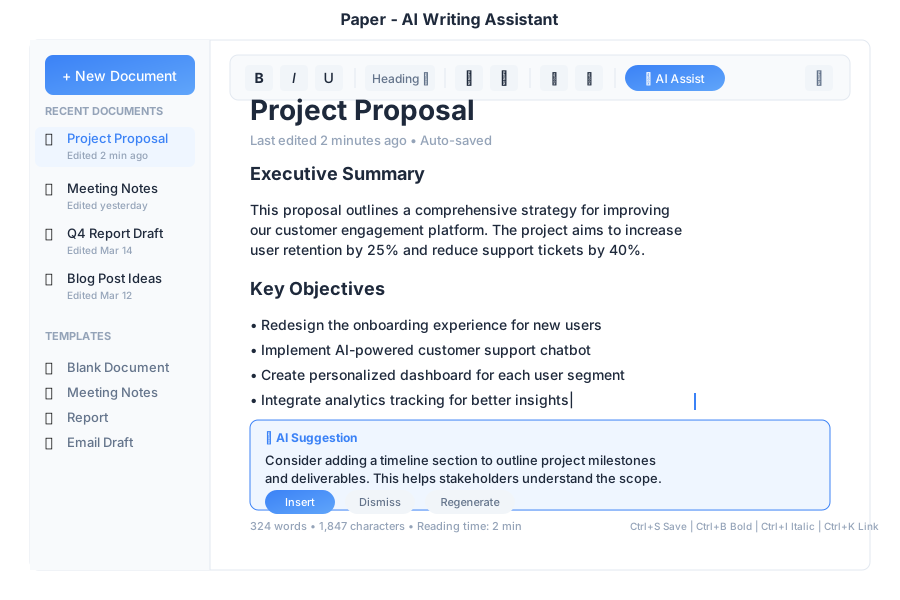
Overview
Paper is the AI-powered writing app in General Bots Suite. Create documents, reports, letters, and more with help from your AI assistant. Paper understands context, suggests improvements, and helps you write faster and better.
Features
Creating a New Document
Method 1: Click New Document
- Click + New Doc in the left sidebar
- Start typing immediately
- Document auto-saves as you work
Method 2: From Template
- Click + New Doc
- Select From Template
- Choose a template:
| Template | Best For |
|---|---|
| Blank | Starting from scratch |
| Report | Business reports with sections |
| Letter | Formal correspondence |
| Meeting Notes | Agenda and action items |
| Checklist | Task tracking |
| Email Template | Reusable email formats |
| Project Proposal | Pitches and proposals |
| Resume/CV | Job applications |
| Invoice | Billing documents |
Method 3: Ask the Bot
Create a new document for meeting notes
✅ Created new document: "Meeting Notes"
I've set up a template with:
• Date and attendees section
• Agenda
• Discussion points
• Action items
Formatting Text
Use the toolbar or keyboard shortcuts to format your text:
| Format | Toolbar | Shortcut |
|---|---|---|
| Bold | B | Ctrl+B |
| Italic | I | Ctrl+I |
| Underline | U | Ctrl+U |
| S | Ctrl+Shift+S |
|
| Heading 1 | H1 | Ctrl+1 |
| Heading 2 | H2 | Ctrl+2 |
| Heading 3 | H3 | Ctrl+3 |
| Bullet list | • | Ctrl+Shift+8 |
| Numbered list | ≡ | Ctrl+Shift+7 |
| Checklist | ☐ | Ctrl+Shift+9 |
| Link | 🔗 | Ctrl+K |
AI Writing Assistant ✨
Paper's AI assistant helps you write better and faster. Click the ✨ AI button or type / to access AI features.
Generate Content:
/write an introduction about renewable energy
Here's a draft introduction:
"Renewable energy has emerged as one of the most significant solutions to our global climate challenges. As fossil fuel reserves dwindle and environmental concerns grow, solar, wind, and hydroelectric power offer sustainable alternatives that can power our future while protecting our planet."
Improve Writing Options:
| Option | What It Does |
|---|---|
| 📝 Improve writing | General quality enhancement |
| ✂️ Make it shorter | Condense without losing meaning |
| 📖 Make it longer | Expand with more detail |
| 🎯 Make it clearer | Simplify complex language |
| 💼 Make it professional | Formal business tone |
| 😊 Make it friendly | Casual, approachable tone |
| 🔧 Fix grammar | Correct errors |
| 🌐 Translate | Convert to another language |
Summarize:
/summarize this document
📋 Document Summary:
This quarterly report covers company performance from January to March 2025. Key points:
• Revenue grew 15% to $2.4M
• 47 new customers acquired
• 94% customer retention rate
• Enterprise segment drove growth
The report recommends expanding the sales team and investing in product development.
Generate Ideas:
/brainstorm topics for a blog post about productivity
💡 Here are 10 blog post ideas:
1. "5 Morning Habits of Highly Productive People"
2. "The Pomodoro Technique: A Complete Guide"
3. "How to Eliminate Distractions While Working"
4. "Time Blocking: Schedule Your Way to Success"
5. "The 2-Minute Rule: Small Tasks, Big Impact"
Would you like me to expand on any of these?
Document Organization
Folders:
Organize your documents into folders:
- Right-click in the sidebar
- Select New Folder
- Name your folder
- Drag documents into it
Search Documents:
Find documents quickly:
- Press
Ctrl+Por click the search icon - Type document name or content
- Press Enter to open
Collaboration
Share a Document:
- Click Share button
- Enter email addresses
- Set permissions
- Click Send
Permissions Explained:
| Permission | Can View | Can Comment | Can Edit |
|---|---|---|---|
| View | ✅ | ❌ | ❌ |
| Comment | ✅ | ✅ | ❌ |
| Edit | ✅ | ✅ | ✅ |
Export Options
Export your documents to different formats:
- Click Export ▼
- Choose a format:
| Format | Best For |
|---|---|
| Printing, sharing final versions | |
| Word (.docx) | Editing in Microsoft Word |
| Markdown (.md) | Technical documentation |
| Plain Text (.txt) | Simple text without formatting |
| HTML | Web publishing |
Export Options:
- Include headers and footers
- Include comments
- Include page numbers
Version History
Paper automatically saves versions of your document:
- Click ⚙️ → Version History
- See all saved versions
- Click to preview
- Restore if needed
Keyboard Shortcuts
Text Formatting
| Shortcut | Action |
|---|---|
Ctrl+B |
Bold |
Ctrl+I |
Italic |
Ctrl+U |
Underline |
Ctrl+Shift+S |
Strikethrough |
Ctrl+1 |
Heading 1 |
Ctrl+2 |
Heading 2 |
Ctrl+3 |
Heading 3 |
Ctrl+0 |
Normal text |
Lists & Structure
| Shortcut | Action |
|---|---|
Ctrl+Shift+7 |
Numbered list |
Ctrl+Shift+8 |
Bullet list |
Ctrl+Shift+9 |
Checklist |
Tab |
Indent |
Shift+Tab |
Outdent |
Editing
| Shortcut | Action |
|---|---|
Ctrl+Z |
Undo |
Ctrl+Y |
Redo |
Ctrl+C |
Copy |
Ctrl+X |
Cut |
Ctrl+V |
Paste |
Ctrl+A |
Select all |
Ctrl+F |
Find |
Ctrl+H |
Find and replace |
Navigation
| Shortcut | Action |
|---|---|
Ctrl+P |
Quick open document |
Ctrl+S |
Save (auto-saves anyway) |
Ctrl+N |
New document |
Ctrl+W |
Close document |
Escape |
Close dialog/menu |
AI Features
| Shortcut | Action |
|---|---|
/ |
Open AI command menu |
Ctrl+Shift+A |
AI improve selection |
Ctrl+Shift+G |
Generate content |
Tips & Tricks
Writing Tips
💡 Use headings to organize your document - makes it scannable
💡 Write first, edit later - don't let perfectionism slow you down
💡 Use AI to overcome writer's block - ask for ideas or outlines
💡 Break long paragraphs into shorter ones for readability
Productivity Tips
💡 Use templates for recurring documents (reports, meeting notes)
💡 Learn keyboard shortcuts - much faster than clicking
💡 Use / commands for quick AI assistance
💡 Set up folders to keep documents organized
AI Tips
💡 Be specific when asking AI for help - better prompts = better results
💡 Use "Make it shorter" for concise professional writing
💡 Ask for multiple versions and pick the best one
💡 Use AI to check grammar before sharing important documents
Troubleshooting
Document not saving
Possible causes:
- Internet connection lost
- Browser storage full
- Session expired
Solution:
- Check internet connection
- Copy your text as backup (
Ctrl+A,Ctrl+C) - Refresh the page
- Log in again if prompted
- Paste your text back if needed
Formatting not working
Possible causes:
- Text not selected
- Format not supported in current context
- Browser compatibility issue
Solution:
- Select the text first, then apply formatting
- Try a different format
- Use keyboard shortcuts instead of toolbar
- Try a different browser
AI features not responding
Possible causes:
- AI service temporarily unavailable
- Network timeout
- Request too long
Solution:
- Wait a few seconds and try again
- Try a shorter text selection
- Refresh the page
- Check if other AI features work
Can't share document
Possible causes:
- No sharing permissions
- Invalid email address
- Document not saved
Solution:
- Check if you're the document owner
- Verify email addresses are correct
- Wait for document to save (check status bar)
- Contact administrator if sharing is restricted
Export fails
Possible causes:
- Document too large
- Special characters causing issues
- Browser blocking download
Solution:
- Try exporting a smaller section first
- Remove any unusual characters or images
- Check browser download settings
- Try a different export format
User Storage
Paper documents are stored in your personal .gbusers folder within the bot's .gbdrive storage. This ensures your documents are private and accessible only to you.
Storage Structure
mybot.gbai/
  mybot.gbdrive/
    users/
      your.email@example.com/      # Your user folder
        papers/
          current/                 # Working documents (auto-saved)
            untitled-1.md
            meeting-notes.md
          named/                   # Saved documents
            quarterly-report/
              document.md
              metadata.json
            project-proposal/
              document.md
              metadata.json
        exports/                   # Exported files (PDF, DOCX, etc.)
          quarterly-report.pdf
          project-proposal.docx
Storage Types
| Type | Location | Description |
|---|---|---|
| Current | papers/current/ |
Auto-saved working documents. These are drafts being actively edited. |
| Named | papers/named/{name}/ |
Explicitly saved documents with metadata. Each gets its own folder. |
| Exports | exports/ |
Generated export files (PDF, Word, HTML, etc.) |
Auto-Save Behavior
Paper auto-saves your work every 30 seconds to papers/current/. When you explicitly save with a title:
- Document moves from
current/tonamed/{title}/ - Metadata file is created with title, timestamps, and word count
- Original draft in
current/is removed
Accessing Your Documents
Your documents follow you across sessions and devices. As long as you're logged in with the same email or phone number, you'll see all your documents.
From the UI:
- Documents appear in the sidebar automatically
- Search finds documents by title
- Recent documents shown first
From BASIC scripts:
' Read your document
content = READ USER DRIVE "papers/named/my-report/document.md"

' List your papers
papers = LIST USER DRIVE "papers/named/"
Storage Limits
Default limits per user (configurable by administrator):
| Setting | Default | Description |
|---|---|---|
| Total storage | 100 MB | Maximum storage per user |
| File size | 5 MB | Maximum single document |
| File count | 500 | Maximum number of documents |
BASIC Integration
Control Paper from your bot dialogs:
Create a Document
doc = CREATE DOCUMENT "Project Notes"
doc.content = "Meeting notes from " + TODAY

SAVE DOCUMENT doc
TALK "Document created: " + doc.id
Generate Content with AI
HEAR topic AS TEXT "What should I write about?"

content = GENERATE TEXT "Write a brief introduction about " + topic

doc = CREATE DOCUMENT topic
doc.content = content
SAVE DOCUMENT doc

TALK "I've created a document about " + topic
TALK "Here's a preview:"
TALK LEFT(content, 200) + "..."
Export a Document
HEAR docName AS TEXT "Which document should I export?"

doc = FIND DOCUMENT docName

IF doc IS NOT NULL THEN
    pdf = EXPORT DOCUMENT doc AS "PDF"
    TALK "Here's your PDF:"
    SEND FILE pdf
ELSE
    TALK "Document not found"
END IF
Search Documents
HEAR query AS TEXT "What are you looking for?"

results = SEARCH DOCUMENTS query

IF COUNT(results) > 0 THEN
    TALK "I found " + COUNT(results) + " documents:"
    FOR EACH doc IN results
        TALK "- " + doc.title
    NEXT
ELSE
    TALK "No documents found matching '" + query + "'"
END IF
Summarize a Document
HEAR docName AS TEXT "Which document should I summarize?"

doc = FIND DOCUMENT docName

IF doc IS NOT NULL THEN
    summary = SUMMARIZE doc.content
    TALK "Summary of '" + doc.title + "':"
    TALK summary
ELSE
    TALK "Document not found"
END IF
See Also
- Drive App - Store and organize files
- Mail App - Email your documents
- Research App - Research topics for your writing
- How To: Add Documents to Knowledge Base