
8.6 KiB
Tasks
The machine does the work
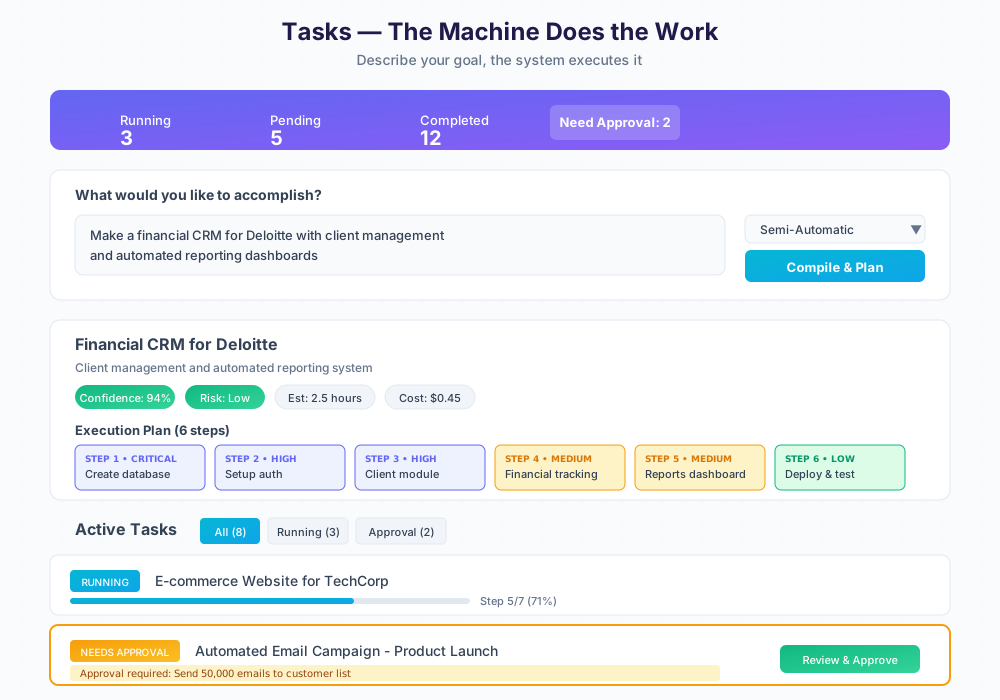
What is Tasks?
Tasks is where the machine does the work for you. Instead of manually tracking to-do items, you describe what you want to accomplish in natural language, and the system compiles your intent into an executable plan with automatic step-by-step execution.
| Old Way | Tasks Way |
|---|---|
| Create a task | Describe your goal |
| Do it yourself | Machine plans it |
| Mark complete | Machine executes it |
| Repeat | You approve critical steps |
How It Works
| Step | What Happens |
|---|---|
| 1. Describe | Write what you want in plain English |
| 2. Compile | LLM analyzes intent, generates execution plan |
| 3. Review | See steps, estimates, risks before execution |
| 4. Execute | System runs the plan, pausing for approvals |
| 5. Monitor | Watch progress, make decisions when needed |
Creating a Task
Write Your Intent
In the intent box, describe what you want to accomplish:
| Good Examples |
|---|
| "Make a financial CRM for Deloitte with client management and reporting" |
| "Create a website that collects leads and sends them to Salesforce" |
| "Build an automated email campaign for our product launch" |
| "Analyze Q4 sales data and generate a PDF report with charts" |
Tips for better results:
- Be specific about the outcome you want
- Mention the client or project name
- Include key features or requirements
- Specify integrations if needed
Choose Execution Mode
| Mode | Best For | How It Works |
|---|---|---|
| Semi-Automatic | Most tasks | Runs automatically, pauses for high-risk steps |
| Supervised | Learning/sensitive | Pauses before each step for your approval |
| Fully Automatic | Trusted workflows | Runs everything without stopping |
| Dry Run | Testing | Simulates execution without making changes |
Set Priority
| Priority | Meaning |
|---|---|
| Critical | Urgent, run immediately |
| High | Important, prioritize |
| Medium | Normal priority (default) |
| Low | Run when resources available |
| Background | Run during idle time |
Click Compile & Plan
The LLM will:
- Extract entities (action, target, domain, client)
- Generate an execution plan with ordered steps
- Assess risks and estimate resources
- Generate the underlying BASIC program
Understanding the Execution Plan
After compilation, you see a detailed plan:
Plan Header
| Field | Description |
|---|---|
| Plan Name | Auto-generated title for your task |
| Description | Summary of what will be accomplished |
| Confidence | How confident the LLM is in the plan (aim for 80%+) |
| Risk Level | Overall risk assessment (None/Low/Medium/High/Critical) |
| Estimated Duration | How long execution should take |
| Estimated Cost | API and compute costs |
Execution Steps
Each step shows:
| Field | Description |
|---|---|
| Step Number | Order of execution |
| Priority | CRITICAL, HIGH, MEDIUM, LOW |
| Step Name | What this step does |
| Keywords | BASIC keywords that will be used |
| Risk Level | Risk for this specific step |
Plan Actions
| Button | Action |
|---|---|
| Discard | Delete the plan, start over |
| Edit Plan | Modify steps before execution |
| Simulate | Preview impact without executing |
| Execute | Start running the plan |
Monitoring Tasks
Task States
| Status | Meaning |
|---|---|
| Draft | Created, not yet compiled |
| Compiling | LLM is generating the plan |
| Ready | Plan generated, waiting to start |
| Running | Currently executing |
| Paused | Execution paused by user |
| Pending Approval | Waiting for you to approve a step |
| Waiting Decision | Needs your input to continue |
| Completed | Successfully finished |
| Failed | Encountered an error |
| Cancelled | Stopped by user |
Filter Tabs
| Tab | Shows |
|---|---|
| All | Every task regardless of status |
| Running | Currently executing tasks |
| Need Approval | Tasks waiting for your approval |
| Decisions | Tasks needing your input |
Progress Tracking
Each task shows:
- Current step number and name
- Progress bar with percentage
- Time elapsed and estimated remaining
Approvals & Decisions
When Approvals Are Required
High-impact actions require your approval:
- Sending emails to many recipients
- Modifying production databases
- Making external API calls with side effects
- Deploying to live environments
- Actions exceeding cost thresholds
Approval Dialog
When approval is needed, you see:
| Field | Description |
|---|---|
| Action description | What will happen |
| Impact summary | What could be affected |
| Risk level | How risky this step is |
| Simulation result | Preview of the outcome |
Options:
| Action | Result |
|---|---|
| Approve | Continue execution |
| Defer | Decide later |
| Reject | Skip this step or stop execution |
Making Decisions
Sometimes the system needs your input:
- Choosing between alternative approaches
- Selecting from multiple options
- Providing missing information
Each option shows pros, cons, and impact estimates.
Task Actions
| Action | When Available | What It Does |
|---|---|---|
| Details | Always | View full task information |
| Simulate | Before execution | Preview impact |
| Pause | While running | Temporarily stop execution |
| Resume | When paused | Continue execution |
| Cancel | Anytime | Stop and discard task |
Creating Tasks from Chat
You can also create tasks by talking to your bot:
You: "I need to build a customer portal for Acme Corp"
Bot: "I'll create a task for that. Here's the plan:
- 5 steps, estimated 3 hours
- Includes: database setup, authentication, dashboard, API integration
- Risk: Low
Should I execute this plan?"
You: "Yes, go ahead"
Bot: "Task started. I'll notify you when approvals are needed."
Generated BASIC Code
Every task generates a BASIC program behind the scenes. You can view and copy this code:
' AUTO-GENERATED BASIC PROGRAM
' Plan: Financial CRM for Deloitte

PLAN_START "Financial CRM", "Client management system"
  STEP 1, "Create database schema", CRITICAL
  STEP 2, "Setup authentication", HIGH
  STEP 3, "Build client module", HIGH
PLAN_END

NEW_TABLE "clients"
  COLUMN "name", STRING
  COLUMN "email", STRING
  COLUMN "revenue", DECIMAL
SAVE_TABLE
This code can be:
- Copied for manual execution
- Modified and saved as a template
- Reused for similar projects
Best Practices
Writing Good Intents
| Do | Don't |
|---|---|
| "Create a sales dashboard for Q4 data with charts showing revenue by region" | "Make something" |
| "Build an email drip campaign: welcome email, 3-day follow-up, 7-day offer" | "Do the thing we discussed" |
| "Analyze customer feedback CSV and generate sentiment report" | "Fix it" |
Choosing Execution Mode
| Situation | Recommended Mode |
|---|---|
| New to Tasks | Supervised |
| Routine tasks | Semi-Automatic |
| Trusted, tested workflows | Fully Automatic |
| Experimenting | Dry Run |
Managing Risk
- Review the risk assessment before executing
- Use Simulate for high-risk tasks
- Set up approval thresholds in settings
- Monitor running tasks actively
Troubleshooting
Compilation Failed
- Check that your intent is clear and specific
- Avoid ambiguous language
- Include necessary context (client name, data sources)
Task Stuck on Running
- Check if an approval is pending
- Look for decision requests
- Review the execution log for errors
Unexpected Results
- Review the generated plan before executing
- Use Dry Run to test first
- Check the BASIC code for issues
Settings
Configure Tasks behavior in Settings:
| Setting | Description |
|---|---|
| Default execution mode | Your preferred mode |
| Approval thresholds | When to require approval |
| Cost limits | Maximum spend per task |
| Notification preferences | How to alert you |
| Auto-cleanup | Remove completed tasks after X days |
See Also
- Autonomous Task AI - Architecture details
- CREATE SITE - App generation
- Calendar - Scheduled tasks
- Chat - Create tasks through conversation