
9.5 KiB
Designer - Visual Builder
Your no-code bot building studio
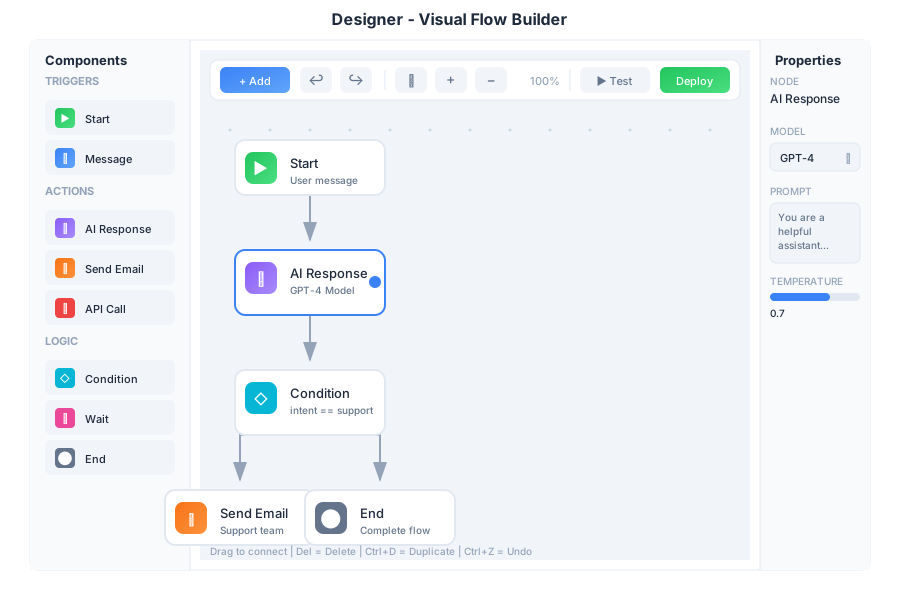
Overview
Designer is the visual bot builder in General Bots Suite. Create conversation flows, design user interfaces, and build automations without writing code. Designer uses a drag-and-drop interface that makes bot development accessible to everyone.
Features
Creating a New Flow
Step 1: Open Designer
- Click the apps menu (⋮⋮⋮)
- Select Designer
- Click + New Flow
Step 2: Configure Flow
| Setting | Description |
|---|---|
| Flow Name | Descriptive title (e.g., "Customer Support") |
| Description | Brief explanation of what the flow does |
| Start from | Blank canvas, Template, or Import from file |
Step 3: Add Components
Drag components from the left panel onto the canvas.
Step 4: Connect Components
Click and drag from one component's output to another's input.
Component Types
Communication Components
| Component | Icon | Purpose |
|---|---|---|
| Talk | 💬 | Send a message to the user |
| Hear | 👂 | Wait for user input |
| Ask | ❓ | Ask a question and capture response |
| Show | 🖼️ | Display an image, card, or media |
| Menu | 📋 | Show clickable options |
Talk Component Options:
- Message text with variations (AI picks randomly)
- Use AI to personalize
- Include typing indicator
- Delay before sending
Ask Component Options:
- Question text
- Variable name to save response
- Expected type: Text, Number, Email, Phone, Date, Yes/No, Multiple Choice
- Validation message for invalid input
Logic Components
| Component | Icon | Purpose |
|---|---|---|
| Branch | 🔀 | Conditional logic (if/else) |
| Loop | 🔄 | Repeat actions |
| Switch | 🔃 | Multiple conditions |
| Wait | ⏱️ | Pause execution |
| End | 🏁 | End the flow |
Branch Configuration:
- Set condition using variable comparisons
- Add multiple AND/OR conditions
- TRUE and FALSE output paths
Action Components
| Component | Icon | Purpose |
|---|---|---|
| Action | ⚡ | Execute a BASIC keyword |
| API Call | 🌐 | Call external API |
| Database | 🗄️ | Query or update data |
| ✉️ | Send an email | |
| Set Variable | 📝 | Store a value |
Action Error Handling:
- Stop flow and show error
- Continue to error path
- Retry N times
AI Components
| Component | Icon | Purpose |
|---|---|---|
| AI Chat | 🤖 | Natural language conversation |
| Search KB | 🔍 | Search knowledge base |
| Generate | ✨ | Generate text with AI |
| Classify | 🏷️ | Categorize user input |
| Extract | 📤 | Extract data from text |
Classify Example Categories:
support- Customer needs help with a problemsales- Customer interested in buyingbilling- Payment or invoice questionsfeedback- Customer giving feedbackother- Anything else
Working with the Canvas
Navigation
| Action | How To |
|---|---|
| Pan | Click and drag on empty space |
| Zoom in | Scroll up or click [+] |
| Zoom out | Scroll down or click [-] |
| Fit to screen | Click [⌖] or press F |
| Select multiple | Hold Shift and click |
| Box select | Hold Ctrl and drag |
Canvas Controls
| Control | Purpose |
|---|---|
| [+] [-] | Zoom in/out |
| [⌖] | Fit to view |
| Grid | Show/hide grid |
| Snap | Snap to grid |
| Auto | Auto-arrange components |
Using Variables
Variables store information during the conversation.
System Variables (read-only):
| Variable | Description |
|---|---|
{{user.name}} |
User's display name |
{{user.email}} |
User's email address |
{{user.phone}} |
User's phone number |
{{channel}} |
Current channel (web, whatsapp, etc) |
{{today}} |
Today's date |
{{now}} |
Current date and time |
{{botName}} |
Name of this bot |
Flow Variables: Variables you create using Ask or Set Variable components.
Reference variables with double curly braces: {{variableName}}
Testing Your Flow
Preview Mode:
- Click Preview button
- A chat window opens
- Test the conversation
- Watch the flow highlight active steps
The Preview panel shows:
- Flow visualization with active step highlighted
- Test conversation area
- Current variable values
- Clear and Reset buttons
Deploying Your Flow
When your flow is ready:
- Click Deploy
- Choose deployment options:
- Production or Staging only
- Immediate or Scheduled
- Configure triggers:
- Specific phrases (e.g., "help", "support")
- As default fallback
- On schedule
- Review changes since last deploy
- Confirm deployment
Templates
Start faster with pre-built templates:
| Template | Description |
|---|---|
| 📋 FAQ Bot | Answer common questions from knowledge base |
| 🎫 Support | Ticket creation and tracking |
| 💰 Sales | Lead capture and qualification |
| 📅 Appointment | Schedule meetings and appointments |
| 📝 Feedback | Collect customer feedback |
| 🚀 Onboarding | New user welcome and setup guide |
Keyboard Shortcuts
Canvas
| Shortcut | Action |
|---|---|
Space + Drag |
Pan canvas |
Ctrl + + |
Zoom in |
Ctrl + - |
Zoom out |
Ctrl + 0 |
Reset zoom |
F |
Fit to screen |
G |
Toggle grid |
Delete |
Delete selected |
Ctrl + D |
Duplicate selected |
Ctrl + Z |
Undo |
Ctrl + Y |
Redo |
Components
| Shortcut | Action |
|---|---|
T |
Add Talk component |
H |
Add Hear component |
A |
Add Ask component |
B |
Add Branch component |
E |
Edit selected component |
Ctrl + C |
Copy component |
Ctrl + V |
Paste component |
Ctrl + X |
Cut component |
Flow
| Shortcut | Action |
|---|---|
Ctrl + S |
Save flow |
Ctrl + P |
Preview flow |
Ctrl + Enter |
Deploy flow |
Ctrl + E |
Export flow |
Ctrl + I |
Import flow |
Tips & Tricks
Design Tips
💡 Keep flows simple - Break complex flows into smaller sub-flows
💡 Use descriptive names - "Ask for Email" is better than "Step 3"
💡 Add comments - Right-click any component to add notes
💡 Test often - Preview after every few changes
Organization Tips
💡 Use folders to organize related flows
💡 Version your flows - Save before major changes
💡 Use templates for consistent starting points
💡 Color-code paths - Use colors for different intents
Performance Tips
💡 Minimize API calls - Cache results when possible
💡 Use AI classification early - Route users quickly
💡 Set timeouts - Don't let flows hang indefinitely
💡 Handle errors - Always add error paths
Troubleshooting
Flow not triggering
Possible causes:
- Flow not deployed
- Trigger words not matching
- Another flow has priority
Solution:
- Click Deploy and confirm it's active
- Check trigger configuration
- Review flow priority in settings
- Test with exact trigger phrases
Variables not working
Possible causes:
- Typo in variable name
- Variable not set yet in flow
- Wrong scope
Solution:
- Check spelling matches exactly (case-sensitive)
- Ensure variable is set before being used
- Use Preview mode to watch variable values
- Check the Variables panel for current values
Component errors
Possible causes:
- Missing required configuration
- Invalid connection
- Action failed
Solution:
- Click the red error icon for details
- Fill in all required fields
- Check that connections make logical sense
- Review error logs in Preview mode
Preview not matching production
Possible causes:
- Changes not deployed
- Different data in production
- External service differences
Solution:
- Deploy latest changes
- Test with same data as production
- Check API connections are identical
- Review production logs
BASIC Integration
Designer flows generate BASIC code. You can view and customize it.
View Generated Code
Right-click any component and select "View Code":
' Generated from "Customer Support" flow

TALK "Hello! How can I help you today?"

HEAR userMessage AS TEXT

intent = CLASSIFY userMessage INTO ["support", "sales", "billing", "other"]

IF intent = "support" THEN
    TALK "I'm sorry to hear you're having issues!"
    HEAR orderNumber AS TEXT "What's your order number?"
    result = SEARCH KB "order " + orderNumber
    TALK result.answer
ELSE IF intent = "sales" THEN
    ' ... sales flow
END IF
Mix Designer and Code
Use the Code component to add custom BASIC:
' Custom calculation
discount = 0

IF userType = "premium" THEN
    discount = orderTotal * 0.15
ELSE IF orderTotal > 100 THEN
    discount = orderTotal * 0.05
END IF

finalPrice = orderTotal - discount
See Also
- Sources App - Manage prompts and templates
- Chat App - Test your flows
- How To: Write Your First Dialog
- BASIC Keywords Reference