
23 KiB
Meet - Video Calls
Your virtual meeting room
Overview
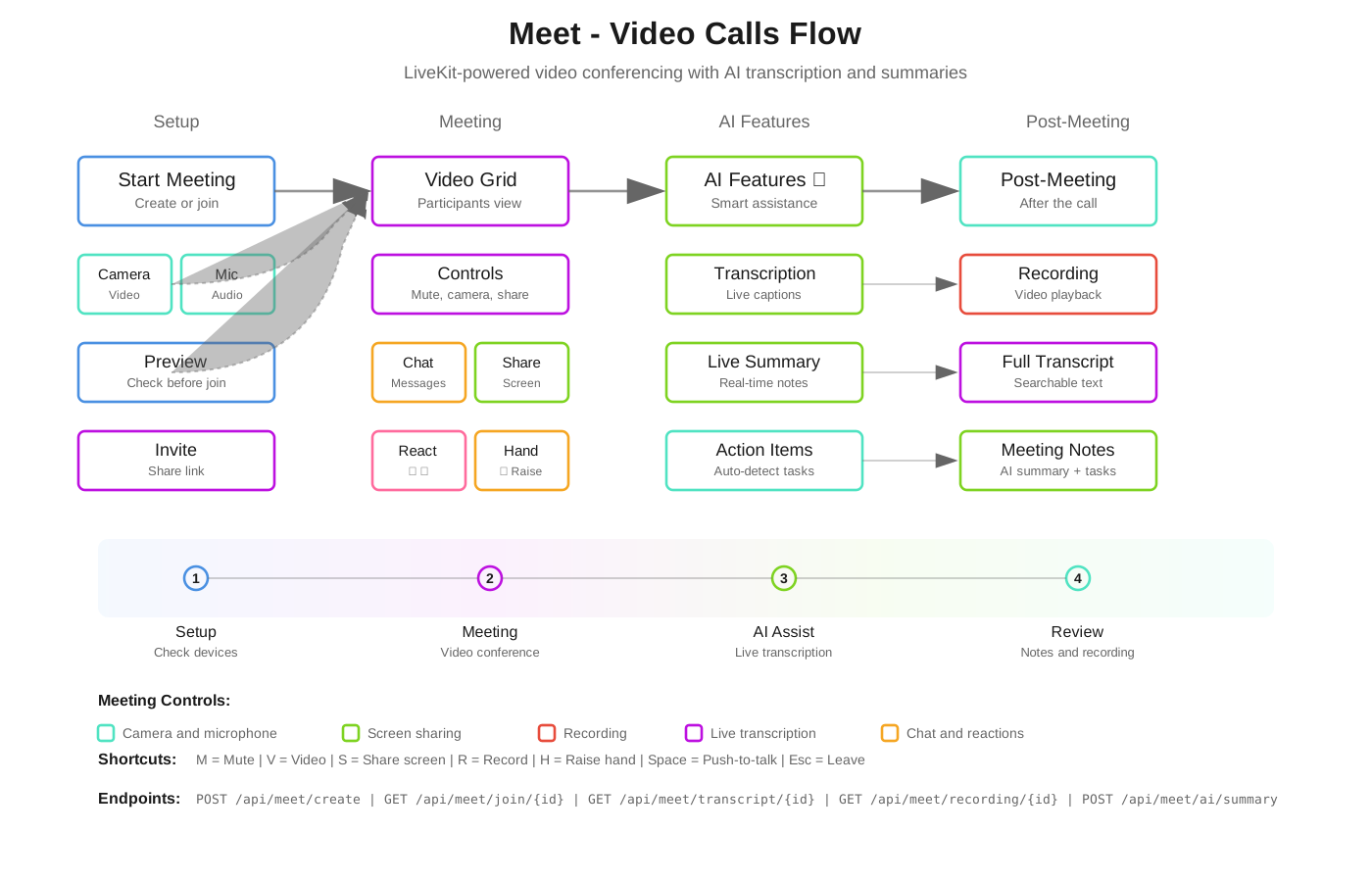
Meet is the video conferencing app in General Bots Suite. Host video calls, share your screen, collaborate in real-time, and let the AI take notes for you. Meet integrates seamlessly with Calendar so joining meetings is just one click away.
Interface Layout
┌─────────────────────────────────────────────────────────────────────────┐
│  Meet                                          [🎤 Mute] [📹 Video] [×] │
├─────────────────────────────────────────────────────────────────────────┤
│                                                                         │
│  ┌─────────────────────────────────────────────────────────────────┐   │
│  │                                                                 │   │
│  │                                                                 │   │
│  │                         ┌───────────┐                           │   │
│  │                         │           │                           │   │
│  │                         │    📹     │                           │   │
│  │                         │   You     │                           │   │
│  │                         │           │                           │   │
│  │                         └───────────┘                           │   │
│  │                                                                 │   │
│  │               Waiting for others to join...                     │   │
│  │                                                                 │   │
│  └─────────────────────────────────────────────────────────────────┘   │
│                                                                         │
├───────────────────────────┬─────────────────────────────────────────────┤
│  PARTICIPANTS (1)         │                                             │
│  ─────────────────        │  ┌─────────────────────────────────────┐   │
│  ● You (Host)             │  │ Chat                                │   │
│                           │  ├─────────────────────────────────────┤   │
│                           │  │                                     │   │
│                           │  │ Meeting started at 10:00 AM         │   │
│                           │  │                                     │   │
│  ─────────────────        │  ├─────────────────────────────────────┤   │
│  [Invite People]          │  │ Type a message...            [Send] │   │
│                           │  └─────────────────────────────────────┘   │
├───────────────────────────┴─────────────────────────────────────────────┤
│  [🎤] [📹] [🖥️ Share] [✋ Raise Hand] [💬 Chat] [⚙️] [📕 End Call]       │
└─────────────────────────────────────────────────────────────────────────┘
Features
Starting a Meeting
Method 1: Instant Meeting
- Open the Meet app from the apps menu
- Click Start Meeting
- Your meeting room is ready instantly
- Share the link with participants
┌─────────────────────────────────────────┐
│  Start a Meeting                  [×]   │
├─────────────────────────────────────────┤
│                                         │
│  ┌─────────────────────────────────┐    │
│  │     🎥 Start Instant Meeting    │    │
│  └─────────────────────────────────┘    │
│                                         │
│  ─────────── or ───────────             │
│                                         │
│  Meeting Link:                          │
│  ┌─────────────────────────────────┐    │
│  │ https://meet.bot/abc-defg-hij   │    │
│  └─────────────────────────────────┘    │
│  [Copy Link] [Share via Email]          │
│                                         │
│  ─────────── or ───────────             │
│                                         │
│  Join with Code:                        │
│  ┌─────────────────────────────────┐    │
│  │ Enter meeting code...           │    │
│  └─────────────────────────────────┘    │
│  [Join Meeting]                         │
│                                         │
└─────────────────────────────────────────┘
Method 2: From Calendar
- Click on a meeting event in Calendar
- Click the Join Meeting button
- You're connected automatically
Method 3: Ask the Bot
You: Start a video call
Bot: ✅ Meeting room created!

     🔗 Link: https://meet.bot/abc-defg-hij

     [Join Now] [Copy Link] [Send Invites]
Joining a Meeting
From a Link
- Click the meeting link you received
- Allow camera and microphone access
- Preview your video
- Click Join Now
From a Code
- Open the Meet app
- Enter the meeting code (e.g.,
abc-defg-hij) - Click Join Meeting
┌─────────────────────────────────────────┐
│  Ready to Join?                   [×]   │
├─────────────────────────────────────────┤
│                                         │
│        ┌─────────────────────┐          │
│        │                     │          │
│        │        📹           │          │
│        │    Your Preview     │          │
│        │                     │          │
│        └─────────────────────┘          │
│                                         │
│        [🎤 On]     [📹 On]              │
│                                         │
│  Your Name:                             │
│  ┌─────────────────────────────────┐    │
│  │ John Smith                      │    │
│  └─────────────────────────────────┘    │
│                                         │
│  ┌─────────────────────────────────┐    │
│  │         Join Now                │    │
│  └─────────────────────────────────┘    │
│                                         │
└─────────────────────────────────────────┘
During the Meeting
Video Grid
When multiple people join, the video grid adjusts automatically:
2 Participants
┌──────────────────┬──────────────────┐
│                  │                  │
│       You        │      Sarah       │
│                  │                  │
└──────────────────┴──────────────────┘
4 Participants
┌──────────────────┬──────────────────┐
│       You        │      Sarah       │
├──────────────────┼──────────────────┤
│       John       │      Mike        │
└──────────────────┴──────────────────┘
Speaker View - Active speaker is shown large:
┌─────────────────────────────────────────┐
│                                         │
│              Active Speaker             │
│                 (Sarah)                 │
│                                         │
├─────────┬─────────┬─────────┬──────────┤
│   You   │  John   │  Mike   │  Lisa    │
└─────────┴─────────┴─────────┴──────────┘
Meeting Controls
| Button | Action | Shortcut |
|---|---|---|
| 🎤 | Mute/Unmute microphone | M |
| 📹 | Turn camera on/off | V |
| 🖥️ | Share your screen | S |
| ✋ | Raise your hand | H |
| 💬 | Open/close chat | C |
| 👥 | Show participants | P |
| ⚙️ | Settings | , |
| 📕 | Leave/End meeting | Ctrl+E |
Screen Sharing
Share your screen, a window, or a browser tab:
- Click the 🖥️ Share button
- Choose what to share:
┌─────────────────────────────────────────────────────────────────┐
│  Share Your Screen                                        [×]   │
├─────────────────────────────────────────────────────────────────┤
│                                                                 │
│  ┌─────────────────┐  ┌─────────────────┐  ┌─────────────────┐ │
│  │                 │  │                 │  │                 │ │
│  │   Entire        │  │   Window        │  │   Browser       │ │
│  │   Screen        │  │                 │  │   Tab           │ │
│  │                 │  │                 │  │                 │ │
│  └─────────────────┘  └─────────────────┘  └─────────────────┘ │
│                                                                 │
│  ☑ Share computer audio                                        │
│                                                                 │
│  [Cancel]                                         [Share]       │
│                                                                 │
└─────────────────────────────────────────────────────────────────┘
- Select the screen, window, or tab
- Click Share
- Click Stop Sharing when done
💡 Tip: Share a specific window to keep other content private.
In-Meeting Chat
Send messages to all participants without interrupting the speaker:
┌─────────────────────────────────────┐
│  Meeting Chat                 [×]   │
├─────────────────────────────────────┤
│                                     │
│  Sarah (10:05 AM)                   │
│  Can everyone see my screen?        │
│                                     │
│  John (10:05 AM)                    │
│  Yes, looks good!                   │
│                                     │
│  You (10:06 AM)                     │
│  Perfect, let's continue.           │
│                                     │
├─────────────────────────────────────┤
│  ┌───────────────────────┐ [Send]   │
│  │ Type a message...     │          │
│  └───────────────────────┘          │
└─────────────────────────────────────┘
Chat Features:
- Send messages to everyone
- Share links and files
- Use emoji reactions
- Chat history is saved
AI Meeting Assistant ✨
Let the AI help during your meetings:
Live Transcription
┌─────────────────────────────────────────┐
│  📝 Live Transcript                     │
├─────────────────────────────────────────┤
│                                         │
│  Sarah (10:05:23)                       │
│  "Let's review the Q2 numbers first"    │
│                                         │
│  John (10:05:45)                        │
│  "Revenue is up 15% from last quarter"  │
│                                         │
│  Sarah (10:06:12)                       │
│  "Great progress on the new product"    │
│                                         │
│  ─── Transcribing... ───                │
│                                         │
└─────────────────────────────────────────┘
Meeting Notes
After the meeting, the AI generates:
- Summary of key points
- Action items with assignees
- Decisions made
- Follow-up tasks
You: Summarize today's meeting
Bot: 📋 Meeting Summary - Project Review
     Duration: 45 minutes
     Participants: You, Sarah, John, Mike

     📌 Key Points:
     • Q2 revenue up 15%
     • New product launch on track for June
     • Marketing budget approved

     ✅ Action Items:
     • Sarah: Finalize launch materials by May 20
     • John: Schedule customer interviews
     • You: Review pricing proposal

     📅 Next Meeting: May 22 at 10 AM
Raise Hand
Get the speaker's attention without interrupting:
- Click ✋ Raise Hand
- Your hand icon appears next to your name
- Host sees a notification
- Click again to lower your hand
┌───────────────────────────┐
│  PARTICIPANTS (4)         │
│  ─────────────────        │
│  ● Sarah (Host)           │
│  ● You ✋                  │  ◄── Hand raised
│  ● John                   │
│  ● Mike                   │
└───────────────────────────┘
Meeting Settings
┌─────────────────────────────────────────┐
│  Meeting Settings                 [×]   │
├─────────────────────────────────────────┤
│                                         │
│  AUDIO                                  │
│  ─────                                  │
│  Microphone: [Built-in Mic        ▼]    │
│  Speaker:    [Built-in Speakers   ▼]    │
│  [🔊 Test Audio]                        │
│                                         │
│  VIDEO                                  │
│  ─────                                  │
│  Camera:     [Built-in Camera     ▼]    │
│  [Mirror my video]  ☑                   │
│  [HD video]         ☐                   │
│                                         │
│  PREFERENCES                            │
│  ──────────                             │
│  [Mute on join]            ☑            │
│  [Camera off on join]      ☐            │
│  [Enable AI transcription] ☑            │
│  [Background blur]         ☐            │
│                                         │
│  ┌─────────────┐  ┌─────────────┐       │
│  │    Save     │  │   Cancel    │       │
│  └─────────────┘  └─────────────┘       │
│                                         │
└─────────────────────────────────────────┘
Virtual Backgrounds
Change your background during the meeting:
- Click ⚙️ Settings → Background
- Choose an option:
| Option | Description |
|---|---|
| None | Show your real background |
| Blur | Blur your background |
| Office | Virtual office background |
| Nature | Nature scene background |
| Custom | Upload your own image |
Keyboard Shortcuts
| Shortcut | Action |
|---|---|
M |
Mute/Unmute microphone |
V |
Turn camera on/off |
S |
Start/stop screen share |
H |
Raise/lower hand |
C |
Open/close chat |
P |
Show/hide participants |
F |
Toggle fullscreen |
Space |
Push to talk (while muted) |
Ctrl+D |
Leave meeting |
Ctrl+E |
End meeting (host only) |
Tips & Tricks
Before the Meeting
💡 Test your audio and video before important meetings
💡 Use a headset to avoid echo and improve audio quality
💡 Check your lighting - face a window or light source
💡 Close unnecessary apps to improve performance
During the Meeting
💡 Mute when not speaking to reduce background noise
💡 Use the chat for links and details without interrupting
💡 Pin important speakers by clicking their video tile
💡 Use reactions (👍 👏 ❤️) for quick feedback
For Hosts
💡 Start recording early so you don't forget
💡 Admit participants from the waiting room promptly
💡 Mute disruptive participants if needed
💡 Share meeting notes after the call
Troubleshooting
No video showing
Possible causes:
- Camera is blocked by another app
- Browser doesn't have camera permission
- Camera is turned off in settings
Solution:
- Close other apps using the camera
- Click the 🔒 icon in browser address bar → Allow Camera
- Check that the camera is selected in Settings
- Try refreshing the page
No one can hear me
Possible causes:
- Microphone is muted
- Wrong microphone selected
- Browser doesn't have microphone permission
Solution:
- Click the 🎤 button to unmute
- Go to Settings → Audio → Select correct microphone
- Click 🔒 in browser → Allow Microphone
- Test with "Test Audio" button in settings
Can't hear others
Possible causes:
- Speaker volume is too low
- Wrong speaker device selected
- System volume is muted
Solution:
- Check system volume (not muted)
- Go to Settings → Audio → Select correct speaker
- Click "Test Audio" to verify
- Try using headphones
Screen share not working
Possible causes:
- Browser doesn't have screen share permission
- System privacy settings block screen recording
- Another app is already sharing
Solution:
- Allow screen share in browser permissions
- On Mac: System Preferences → Security → Screen Recording → Allow browser
- On Windows: Check privacy settings
- Close any other screen sharing software
Poor video quality
Possible causes:
- Slow internet connection
- Too many participants with video on
- Computer is overloaded
Solution:
- Close other apps and browser tabs
- Turn off HD video in settings
- Ask some participants to turn off video
- Move closer to your WiFi router
BASIC Integration
Control Meet from your bot dialogs:
Create a Meeting
meeting = CREATE MEETING "Project Discussion"

TALK "Meeting created!"
TALK "Link: " + meeting.link
TALK "Code: " + meeting.code
Schedule a Meeting
meeting = NEW OBJECT
meeting.title = "Weekly Standup"
meeting.date = "2025-05-20"
meeting.time = "10:00"
meeting.duration = 30
meeting.attendees = ["sarah@company.com", "john@company.com"]

result = SCHEDULE MEETING meeting
SEND INVITATION result
Get Meeting Transcript
transcript = GET MEETING TRANSCRIPT meetingId

TALK "Meeting Summary:"
TALK transcript.summary

TALK "Action Items:"
FOR EACH item IN transcript.actionItems
    TALK "- " + item.task + " (" + item.assignee + ")"
NEXT
Join a Meeting Programmatically
HEAR code AS TEXT "Enter the meeting code"

IF LEN(code) > 0 THEN
    JOIN MEETING code
    TALK "Joining meeting..."
ELSE
    TALK "No code provided"
END IF
See Also
- Calendar App - Schedule meetings
- Chat App - Continue conversations after meetings
- Mail App - Send meeting invitations
- How To: Create Your First Bot