 Rodrigo Rodriguez (Pragmatismo)
91a6710c52
Rodrigo Rodriguez (Pragmatismo)
91a6710c52
- Add comprehensive humanoid robotics guide (humanoid.md) with:
  - Supported robot kits (Unitree, UBTECH, Poppy, InMoov, ROBOTIS)
  - BASIC keywords for servo/movement control
  - Computer vision integration (face, object, gesture detection)
  - LLM-driven conversational movement
  - Build guides for beginner to advanced
  - Safety considerations and complete reception robot example

- Create humanoid-architecture.svg with theme transparency

- Update PROMPT.md with NO ASCII DIAGRAMS rule

- Update devices README to include humanoid robotics section

- SVG diagrams for chapter 13 devices

- Update documentation style guide with theme transparency
42 KiB
How To: Connect WhatsApp
Tutorial 5 of the Channels Series
Connect your bot to WhatsApp in 20 minutes
Objective
By the end of this tutorial, you will have:
- Created a Meta Business account
- Set up a WhatsApp Business App
- Connected WhatsApp to your General Bots instance
- Tested the connection with a real message
Time Required
⏱️ 20 minutes
Prerequisites
Before you begin, make sure you have:
- A working bot (see Create Your First Bot)
- A phone number for WhatsApp Business (cannot be used with regular WhatsApp)
- A Facebook account
- Administrator access to General Bots
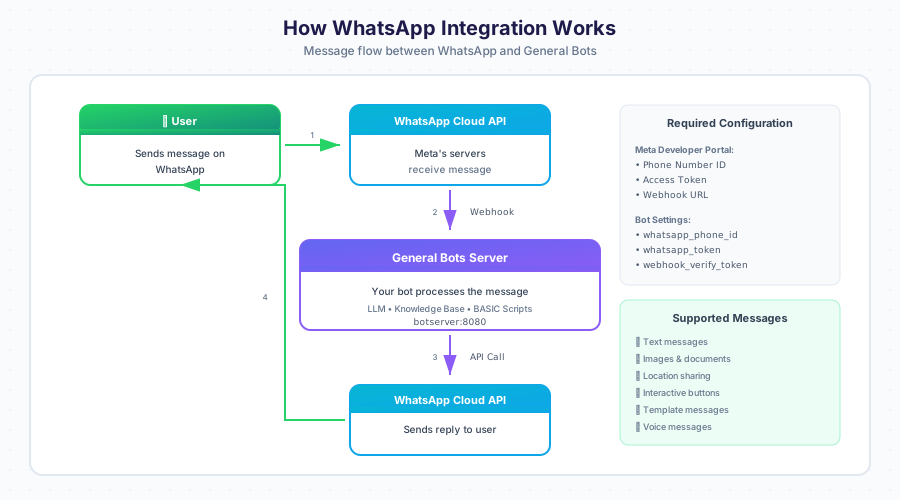
Understanding WhatsApp Integration
Step 1: Set Up Meta Business Account
1.1 Go to Meta for Developers
Open your browser and navigate to:
https://developers.facebook.com
┌─────────────────────────────────────────────────────────────────────────┐
│  🌐 Browser                                                     [─][□][×]│
├─────────────────────────────────────────────────────────────────────────┤
│  ← → ↻  │ https://developers.facebook.com                        │ ☆ │  │
├─────────────────────────────────────────────────────────────────────────┤
│                                                                         │
│                     Meta for Developers                                 │
│                                                                         │
│                   ┌─────────────────────┐                               │
│                   │      Log In         │                               │
│                   └─────────────────────┘                               │
│                                                                         │
└─────────────────────────────────────────────────────────────────────────┘
1.2 Log In with Facebook
- Click Log In
- Enter your Facebook credentials
- Click Log In
1.3 Create a Meta Business Account (If Needed)
If you don't have a business account:
- Go to https://business.facebook.com
- Click Create Account
- Enter your business name
- Enter your name and business email
- Click Submit
💡 Note: You can use your personal Facebook account, but a business account is recommended for production use.
✅ Checkpoint: You should now be logged into Meta for Developers.
Step 2: Create a WhatsApp App
2.1 Go to My Apps
Click My Apps in the top navigation.
┌─────────────────────────────────────────────────────────────────────────┐
│  Meta for Developers                           [My Apps ▼] [👤 Account] │
├─────────────────────────────────────────────────────────────────────────┤
│                                                                         │
│                              My Apps                                    │
│                              ───────                                    │
│                                                                         │
│                   ┌─────────────────────────┐                           │
│                   │     + Create App        │ ◄── Click here            │
│                   └─────────────────────────┘                           │
│                                                                         │
│                   You don't have any apps yet.                          │
│                                                                         │
└─────────────────────────────────────────────────────────────────────────┘
2.2 Create a New App
- Click Create App
- Select Business as the app type
- Click Next
┌─────────────────────────────────────────────────────────────────────────┐
│  Create an App                                                    [×]   │
├─────────────────────────────────────────────────────────────────────────┤
│                                                                         │
│  Select an app type:                                                    │
│                                                                         │
│  ┌─────────────────┐  ┌─────────────────┐  ┌─────────────────┐         │
│  │    Consumer     │  │   ● Business    │  │     Gaming      │         │
│  │                 │  │   ◄── Select    │  │                 │         │
│  │  For consumer   │  │                 │  │  For game       │         │
│  │  apps           │  │  For business   │  │  integrations   │         │
│  │                 │  │  integrations   │  │                 │         │
│  └─────────────────┘  └─────────────────┘  └─────────────────┘         │
│                                                                         │
│                                                        [Next]           │
│                                                                         │
└─────────────────────────────────────────────────────────────────────────┘
2.3 Fill In App Details
| Field | What to Enter | Example |
|---|---|---|
| App Name | Your bot's name | My Company Bot |
| App Contact Email | Your email | admin@company.com |
| Business Account | Select or create | My Company |
┌─────────────────────────────────────────────────────────────────────────┐
│  Add App Details                                                  [×]   │
├─────────────────────────────────────────────────────────────────────────┤
│                                                                         │
│  App Name:                                                              │
│  ┌─────────────────────────────────────────────────────────────────┐   │
│  │ My Company Bot                                                  │   │
│  └─────────────────────────────────────────────────────────────────┘   │
│                                                                         │
│  App Contact Email:                                                     │
│  ┌─────────────────────────────────────────────────────────────────┐   │
│  │ admin@company.com                                               │   │
│  └─────────────────────────────────────────────────────────────────┘   │
│                                                                         │
│  Business Account:                                                      │
│  ┌─────────────────────────────────────────────────────────────────┐   │
│  │ My Company                                              [▼]     │   │
│  └─────────────────────────────────────────────────────────────────┘   │
│                                                                         │
│                                                    [Create App]         │
│                                                                         │
└─────────────────────────────────────────────────────────────────────────┘
- Click Create App
- Complete the security check if prompted
2.4 Add WhatsApp to Your App
- In the app dashboard, scroll to Add Products
- Find WhatsApp and click Set Up
┌─────────────────────────────────────────────────────────────────────────┐
│  Add Products to Your App                                               │
├─────────────────────────────────────────────────────────────────────────┤
│                                                                         │
│  ┌─────────────────┐  ┌─────────────────┐  ┌─────────────────┐         │
│  │   Messenger     │  │   📱 WhatsApp   │  │   Instagram     │         │
│  │                 │  │                 │  │                 │         │
│  │   [Set Up]      │  │   [Set Up] ◄──  │  │   [Set Up]      │         │
│  │                 │  │   Click here    │  │                 │         │
│  └─────────────────┘  └─────────────────┘  └─────────────────┘         │
│                                                                         │
└─────────────────────────────────────────────────────────────────────────┘
✅ Checkpoint: WhatsApp should now appear in your app's left sidebar.
Step 3: Configure WhatsApp Settings
3.1 Get Your API Credentials
In the left sidebar, click WhatsApp → API Setup.
You'll see:
- Phone number ID - Identifies your WhatsApp number
- WhatsApp Business Account ID - Your business account
- Temporary access token - For testing (expires in 24 hours)
┌─────────────────────────────────────────────────────────────────────────┐
│  WhatsApp > API Setup                                                   │
├─────────────────────────────────────────────────────────────────────────┤
│                                                                         │
│  STEP 1: Select Phone Numbers                                           │
│  ────────────────────────────                                           │
│                                                                         │
│  From: [Test Number - 15550001234         ▼]                           │
│                                                                         │
│  To: (Add a recipient phone number for testing)                         │
│  ┌─────────────────────────────────────────────────────────────────┐   │
│  │ +1 555 123 4567                                                 │   │
│  └─────────────────────────────────────────────────────────────────┘   │
│                                                                         │
│  ─────────────────────────────────────────────────────────────────────  │
│                                                                         │
│  STEP 2: Send Messages with the API                                     │
│  ──────────────────────────────────                                     │
│                                                                         │
│  Temporary Access Token:                                                │
│  ┌─────────────────────────────────────────────────────────────────┐   │
│  │ EAAGm0PX4ZCp...                                        [Copy]   │   │
│  └─────────────────────────────────────────────────────────────────┘   │
│  ⚠️ This token expires in 24 hours. Use System User for production.     │
│                                                                         │
│  Phone Number ID: 123456789012345                          [Copy]       │
│  WhatsApp Business Account ID: 987654321098765             [Copy]       │
│                                                                         │
└─────────────────────────────────────────────────────────────────────────┘
📝 Write down these values - You'll need them in the next step:
- Phone Number ID:
_______________ - Access Token:
_______________
3.2 Create a Permanent Access Token
For production, you need a permanent token:
- Go to Business Settings → System Users
- Click Add to create a system user
- Name it (e.g., "WhatsApp Bot")
- Set role to Admin
- Click Generate Token
- Select your app and the
whatsapp_business_messagingpermission - Click Generate Token
💡 Important: Save this token securely! You won't be able to see it again.
3.3 Configure the Webhook
The webhook tells Meta where to send incoming messages.
- In the left sidebar, click WhatsApp → Configuration
- Under Webhook, click Edit
┌─────────────────────────────────────────────────────────────────────────┐
│  Webhook Configuration                                            [×]   │
├─────────────────────────────────────────────────────────────────────────┤
│                                                                         │
│  Callback URL:                                                          │
│  ┌─────────────────────────────────────────────────────────────────┐   │
│  │ https://your-bot-server.com/webhook/whatsapp                    │   │
│  └─────────────────────────────────────────────────────────────────┘   │
│                                                                         │
│  Verify Token:                                                          │
│  ┌─────────────────────────────────────────────────────────────────┐   │
│  │ your-custom-verify-token-here                                   │   │
│  └─────────────────────────────────────────────────────────────────┘   │
│                                                                         │
│  ⚠️ Your server must respond to Meta's verification request             │
│                                                                         │
│  ┌─────────────────────────────────────────────────────────────────┐   │
│  │                    Verify and Save                              │   │
│  └─────────────────────────────────────────────────────────────────┘   │
│                                                                         │
└─────────────────────────────────────────────────────────────────────────┘
Enter these values:
| Field | Value |
|---|---|
| Callback URL | https://your-server.com/webhook/whatsapp |
| Verify Token | A secret string you create (e.g., my_bot_verify_123) |
- Click Verify and Save
3.4 Subscribe to Webhook Events
After verifying, select which events to receive:
┌─────────────────────────────────────────────────────────────────────────┐
│  Webhook Fields                                                         │
├─────────────────────────────────────────────────────────────────────────┤
│                                                                         │
│  ☑ messages              ◄── Required! Receive incoming messages       │
│  ☐ message_template_status_update                                       │
│  ☐ phone_number_name_update                                             │
│  ☐ phone_number_quality_update                                          │
│  ☑ account_review_update                                                │
│  ☐ account_update                                                       │
│  ☐ business_capability_update                                           │
│  ☐ flows                                                                │
│  ☑ security                                                             │
│  ☑ message_echoes                                                       │
│                                                                         │
└─────────────────────────────────────────────────────────────────────────┘
At minimum, select:
- messages (required - to receive user messages)
✅ Checkpoint: Webhook should show as "Active" with a green indicator.
Step 4: Configure General Bots
4.1 Open Bot Settings
- In General Bots, go to Sources
- Click ⚙️ on your bot
- Go to the Channels tab
┌─────────────────────────────────────────────────────────────────────────┐
│  Bot Settings: support                                            [×]   │
├─────────────────────────────────────────────────────────────────────────┤
│                                                                         │
│  ┌──────────┬──────────┬──────────┬──────────┬──────────┐              │
│  │ General  │    AI    │*Channels*│ Security │ Advanced │              │
│  └──────────┴──────────┴──────────┴──────────┴──────────┘              │
│                                                                         │
│  CONNECTED CHANNELS                                                     │
│  ──────────────────                                                     │
│                                                                         │
│  ┌─────────────────────────────────────────────────────────────────┐   │
│  │ 🌐 Web Chat                                      Status: ● On   │   │
│  │    Embedded widget on your website                              │   │
│  │    [Configure]                                                  │   │
│  └─────────────────────────────────────────────────────────────────┘   │
│                                                                         │
│  ┌─────────────────────────────────────────────────────────────────┐   │
│  │ 📱 WhatsApp                                      Status: ○ Off  │   │
│  │    Not configured                                               │   │
│  │    [Configure] ◄── Click here                                   │   │
│  └─────────────────────────────────────────────────────────────────┘   │
│                                                                         │
└─────────────────────────────────────────────────────────────────────────┘
4.2 Enter WhatsApp Credentials
Click Configure for WhatsApp and enter your credentials:
┌─────────────────────────────────────────────────────────────────────────┐
│  WhatsApp Configuration                                           [×]   │
├─────────────────────────────────────────────────────────────────────────┤
│                                                                         │
│  META API CREDENTIALS                                                   │
│  ────────────────────                                                   │
│                                                                         │
│  Phone Number ID:                                                       │
│  ┌─────────────────────────────────────────────────────────────────┐   │
│  │ 123456789012345                                                 │   │
│  └─────────────────────────────────────────────────────────────────┘   │
│                                                                         │
│  Access Token:                                                          │
│  ┌─────────────────────────────────────────────────────────────────┐   │
│  │ ••••••••••••••••••••••••••••••••••••••                          │   │
│  └─────────────────────────────────────────────────────────────────┘   │
│                                                                         │
│  Verify Token:                                                          │
│  ┌─────────────────────────────────────────────────────────────────┐   │
│  │ my_bot_verify_123                                               │   │
│  └─────────────────────────────────────────────────────────────────┘   │
│  ⚠️ Must match the token you set in Meta Developer Portal               │
│                                                                         │
│  ─────────────────────────────────────────────────────────────────────  │
│                                                                         │
│  WEBHOOK URL (provide this to Meta)                                     │
│  ──────────────────────────────────                                     │
│  ┌─────────────────────────────────────────────────────────────────┐   │
│  │ https://your-server.com/webhook/whatsapp                [Copy]  │   │
│  └─────────────────────────────────────────────────────────────────┘   │
│                                                                         │
│  ┌─────────────────┐  ┌─────────────────┐                              │
│  │  Test Connection │  │      Save       │                              │
│  └─────────────────┘  └─────────────────┘                              │
│                                                                         │
└─────────────────────────────────────────────────────────────────────────┘
4.3 Test the Connection
- Click Test Connection
- You should see "Connection successful!"
If the test fails, check:
- Token is correct and not expired
- Phone Number ID is correct
- Your server is accessible from the internet
4.4 Save and Enable
- Click Save
- Toggle WhatsApp to On
✅ Checkpoint: WhatsApp should now show Status: ● On
Step 5: Test Your WhatsApp Bot
5.1 Add Test Phone Number
In Meta Developer Portal:
- Go to WhatsApp → API Setup
- Under "To", add your phone number
- Click Send to receive a test message
5.2 Send a Test Message
- Open WhatsApp on your phone
- Message the bot's number (the test number from Meta)
- Send: "Hello"
┌─────────────────────────────────────────────────────────────────────────┐
│                                                                         │
│                    WhatsApp                                             │
│                                                                         │
│  ┌─────────────────────────────────────────────────────────────────┐   │
│  │                                                                 │   │
│  │  My Company Bot                                                 │   │
│  │  +1 555 000 1234                                               │   │
│  │                                                                 │   │
│  │  ─────────────────────────────────────────────────────────────  │   │
│  │                                                                 │   │
│  │                                              ┌───────────────┐  │   │
│  │                                              │    Hello      │  │   │
│  │                                              │         10:30 │  │   │
│  │                                              └───────────────┘  │   │
│  │                                                                 │   │
│  │  ┌─────────────────────────────────────────┐                    │   │
│  │  │ Hello! How can I help you today?        │                    │   │
│  │  │ 10:30                                   │                    │   │
│  │  └─────────────────────────────────────────┘                    │   │
│  │                                                                 │   │
│  │                                              ┌───────────────┐  │   │
│  │                                              │ I need help   │  │   │
│  │                                              │ with my order │  │   │
│  │                                              │         10:31 │  │   │
│  │                                              └───────────────┘  │   │
│  │                                                                 │   │
│  │  ┌─────────────────────────────────────────┐                    │   │
│  │  │ I'd be happy to help with your order!   │                    │   │
│  │  │ What's your order number?               │                    │   │
│  │  │ 10:31                                   │                    │   │
│  │  └─────────────────────────────────────────┘                    │   │
│  │                                                                 │   │
│  └─────────────────────────────────────────────────────────────────┘   │
│                                                                         │
│  ┌─────────────────────────────────────────────────────────────────┐   │
│  │ Type a message...                                          📎   │   │
│  └─────────────────────────────────────────────────────────────────┘   │
│                                                                         │
└─────────────────────────────────────────────────────────────────────────┘
5.3 Verify in General Bots
Check that the conversation appears in Analytics:
- Go to Analytics → Sessions
- You should see a new session with channel "WhatsApp"
🎉 Congratulations!
Your bot is now connected to WhatsApp! Users can message your WhatsApp Business number and receive responses from your bot.
┌─────────────────────────────────────────────────────────────────────────┐
│                                                                         │
│                         ✓ SUCCESS!                                      │
│                                                                         │
│                    Your WhatsApp bot is live!                           │
│                                                                         │
│     ┌───────────┐              ┌───────────┐              ┌──────────┐ │
│     │           │              │           │              │          │ │
│     │    📱     │  ────────▶   │    🤖     │  ────────▶   │    💬    │ │
│     │  WhatsApp │              │  General  │              │   Bot    │ │
│     │   User    │  ◀────────   │   Bots    │  ◀────────   │ Response │ │
│     │           │              │           │              │          │ │
│     └───────────┘              └───────────┘              └──────────┘ │
│                                                                         │
└─────────────────────────────────────────────────────────────────────────┘
Going to Production
Add a Real Phone Number
The test number has limitations. For production:
- Go to WhatsApp → Phone Numbers in Meta Developer Portal
- Click Add Phone Number
- Enter your business phone number
- Verify via SMS or voice call
- Update the Phone Number ID in General Bots settings
Submit for App Review
Before going live with real customers:
- Go to App Review in Meta Developer Portal
- Request
whatsapp_business_messagingpermission - Complete the review process (takes 2-5 business days)
Set Up Message Templates
For proactive messages (not replies), you need approved templates:
- Go to WhatsApp → Message Templates
- Create templates for notifications, alerts, etc.
- Wait for Meta approval (usually 24 hours)
Troubleshooting
Problem: "Webhook verification failed"
Possible causes:
- Verify token doesn't match
- Server not responding
- HTTPS not configured
Solution:
- Check the verify token matches exactly in both places
- Verify your server is accessible:
curl https://your-server.com/webhook/whatsapp - Ensure you have a valid SSL certificate
Problem: Messages not arriving
Possible causes:
- Webhook not subscribed to "messages"
- App in development mode with unlisted numbers
- Access token expired
Solution:
- Check webhook subscriptions include "messages"
- Add test phone numbers in API Setup
- Generate a new access token
Problem: Bot responds slowly
Possible causes:
- Network latency
- Bot processing time
- Meta rate limits
Solution:
- Ensure server is geographically close to users
- Optimize bot dialog processing
- Check rate limit status in Meta dashboard
Problem: "Error 190: Invalid OAuth access token"
Possible causes:
- Token expired (temporary tokens last 24 hours)
- Token was revoked
- Wrong token used
Solution:
- Generate a new System User token (permanent)
- Update the token in General Bots settings
- Verify you're using the WhatsApp access token, not a Facebook token
Problem: Phone number shows as unverified
Possible causes:
- Verification not completed
- Two-factor authentication issue
- Number already in use
Solution:
- Re-request verification code
- Check business verification status
- Contact Meta support if number was previously registered
What You Learned
In this tutorial, you:
- ✅ Created a Meta Developer account and app
- ✅ Configured WhatsApp Cloud API
- ✅ Set up webhook for incoming messages
- ✅ Connected WhatsApp to General Bots
- ✅ Tested the integration with real messages
Next Steps
Now that WhatsApp is connected, try these:
| Next Tutorial | What You'll Learn |
|---|---|
| Write Your First Dialog | Create custom conversation flows |
| Add KB Documents | Make your bot smarter |
| Monitor Sessions | Track WhatsApp conversations |
Quick Reference
WhatsApp Message Limits
| Tier | Messages/Day | How to Qualify |
|---|---|---|
| Unverified | 250 | New accounts |
| Verified | 1,000 | Complete business verification |
| Tier 1 | 10,000 | Good quality rating |
| Tier 2 | 100,000 | Maintain quality |
| Tier 3 | Unlimited | High volume, good quality |
Quality Rating
Meta monitors your WhatsApp quality based on:
- User blocks and reports
- Message template quality
- Response time
Keep quality high by:
- Responding to all messages
- Not spamming users
- Using approved templates for outbound messages
Key URLs
| Resource | URL |
|---|---|
| Meta for Developers | https://developers.facebook.com |
| Meta Business Suite | https://business.facebook.com |
| WhatsApp Cloud API Docs | https://developers.facebook.com/docs/whatsapp |
| API Status | https://metastatus.com |
Configuration via config.csv
Configure WhatsApp in your bot's config.csv:
name,value
whatsapp-phone-number-id,123456789012345
whatsapp-access-token,EAAGm0PX4ZCp...
whatsapp-verify-token,my_bot_verify_123
whatsapp-business-account-id,987654321098765
Note: Do not use environment variables for WhatsApp configuration. All settings belong in config.csv.
See Also
- Chat App - Web chat interface
- Sources App - Bot configuration
- Compliance App - Data privacy for WhatsApp
- BASIC Keywords - WhatsApp-specific keywords