 Rodrigo Rodriguez (Pragmatismo)
bd201bab35
Rodrigo Rodriguez (Pragmatismo)
bd201bab35
- New keyword-use-mcp.md: Complete docs for USE MCP keyword and mcp.csv
- Updated sources.md: MCP Servers section with mcp.csv configuration
- CSV format examples and connection type documentation
- Authentication configuration (api_key, bearer)
- Integration with Tasks and BASIC examples
10 KiB
Sources
Repositories, Apps, Prompts, Templates & MCP Servers
Overview
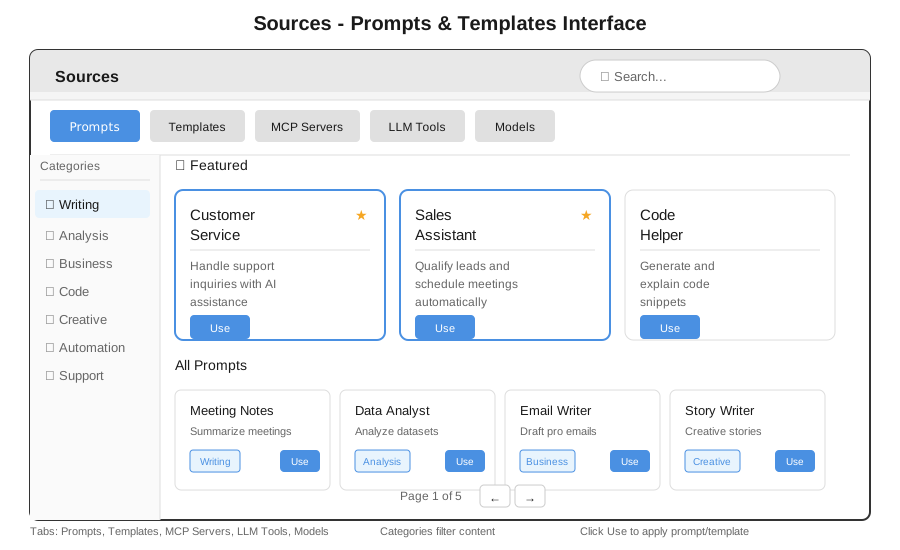
Sources is where you connect everything your bot can reference. Add Git repositories, manage generated apps, configure prompts, and connect MCP servers. Most importantly, Sources enables @mentions in chat—reference @botserver to work on a repository or @myapp to modify an app you created.
Tabs
| Tab | What It Contains |
|---|---|
| Repositories | Git repos (GitHub, GitLab, Bitbucket) |
| Apps | HTMX apps created with CREATE SITE |
| Prompts | System prompts and templates |
| Templates | Bot packages (.gbai) |
| News | Platform updates and announcements |
| MCP Servers | Model Context Protocol servers |
| LLM Tools | Available LLM-invokable tools |
| Models | Configured AI models |
Repositories
Connect Git repositories so Tasks can read, modify, and commit code.
Adding a Repository
- Click + Add Repository
- Enter the repository URL (HTTPS or SSH)
- Authenticate if private
- Click Connect
Repository Card
Each connected repository shows:
| Field | Description |
|---|---|
| Name | Repository name with @mention tag |
| Owner | Organization or user |
| Description | From repository README |
| Language | Primary programming language |
| Stars/Forks | GitHub metrics |
| Status | Connected or disconnected |
Using @mentions with Repositories
In chat, type @ followed by the repo name:
You: @botserver add error handling to the login function

Bot: I'll modify botserver. Looking at the login function...
     [Task created: Add error handling to login]
The system will:
- Clone or pull the latest code
- Analyze the relevant files
- Make the requested changes
- Create a commit or pull request
Repository Actions
| Action | Description |
|---|---|
| Browse | View files and folders |
| Mention | Insert @repo into chat |
| Disconnect | Remove from Sources |
| Settings | Configure branch, credentials |
Apps
Apps are HTMX applications created with CREATE SITE. They appear here automatically.
App Card
Each app shows:
| Field | Description |
|---|---|
| Name | App name with @mention tag |
| Type | HTMX, Dashboard, Site |
| Description | Generated from creation prompt |
| URL | Live endpoint (e.g., /crm) |
| Created | When the app was generated |
Using @mentions with Apps
Reference apps to modify them:
You: @crm change the submit button to green

Bot: I'll update the CRM app. Modifying the button styles...
     [Task created: Change submit button color]
You: @dashboard add a new KPI card for monthly revenue

Bot: I'll add that to your dashboard. Creating the KPI card...
     [Task created: Add monthly revenue KPI]
App Actions
| Action | Description |
|---|---|
| Open | View app in new tab |
| Edit | Open Tasks with app context |
| Mention | Insert @app into chat |
| Delete | Remove app and files |
@Mention Autocomplete
When typing in chat, @ triggers autocomplete:
- Type
@to see suggestions - Continue typing to filter (e.g.,
@botshows@botserver,@botui) - Press Enter or Tab to select
- Press Escape to cancel
Mention Types
| Type | Icon | Example |
|---|---|---|
| Repository | Git icon | @botserver |
| App | Grid icon | @mycrm |
Context for Tasks
When you mention a source, it becomes context for the task:
You: @botserver @botui make the API response format consistent

Bot: I'll update both repositories to use consistent response formats.
     [Task created with context: botserver, botui]
Without explicit mentions, Tasks uses recent context or asks for clarification.
Prompts
System prompts define bot personality and behavior.
Prompt Categories
| Category | Purpose |
|---|---|
| Assistants | Role-specific personas |
| Tools | Tool descriptions for LLM |
| Personas | Bot personality definitions |
| Custom | Your own prompts |
Creating a Prompt
- Click + New Prompt
- Enter name and category
- Write prompt content
- Use
{{variables}}for dynamic values - Click Save
Prompt Actions
| Action | Description |
|---|---|
| Use | Apply to current session |
| Copy | Copy to clipboard |
| Save | Add to collection |
| Edit | Modify content |
Templates
Bot packages ready to deploy.
Available Templates
| Template | Description |
|---|---|
| CRM | Customer relationship management |
| Support | Helpdesk and ticketing |
| Analytics | Dashboards and reports |
| Compliance | LGPD, GDPR, HIPAA |
Installing a Template
- Click on template card
- Review contents
- Click Install
- Configure settings
- Bot is ready
MCP Servers
Model Context Protocol servers extend bot capabilities. MCP servers are configured via mcp.csv in the bot's .gbai folder, making their tools available to Tasks just like BASIC keywords.
The mcp.csv File
MCP servers are configured by adding entries to mcp.csv in your bot's .gbai folder:
mybot.gbai/
├── mybot.gbdialog/     # BASIC scripts
├── mybot.gbdrive/      # Files and documents
├── config.csv          # Bot configuration
├── attendant.csv       # Attendant configuration
└── mcp.csv             # MCP server definitions
When botserver starts, it reads the mcp.csv file and loads all server configurations.
Server Card
| Field | Description |
|---|---|
| Name | Server identifier (used for USE MCP calls) |
| Type | filesystem, github, database, slack, etc. |
| Status | Active, Inactive, Error |
| Tools | Available tools count |
| Source | "directory" (from .gbmcp) |
mcp.csv Format
The CSV file has the following columns:
| Column | Required | Description |
|---|---|---|
name |
Yes | Unique server identifier |
type |
Yes | Connection type: stdio, http, websocket, tcp |
command |
Yes | For stdio: command. For http/ws: URL |
args |
No | Command arguments (space-separated) |
description |
No | Human-readable description |
enabled |
No | true or false (default: true) |
auth_type |
No | none, api_key, bearer |
auth_env |
No | Environment variable for auth |
Example mcp.csv
name,type,command,args,description,enabled
# MCP Server Configuration - lines starting with # are comments
filesystem,stdio,npx,"-y @modelcontextprotocol/server-filesystem /data",Access local files,true
github,stdio,npx,"-y @modelcontextprotocol/server-github",GitHub API,true,bearer,GITHUB_TOKEN
postgres,stdio,npx,"-y @modelcontextprotocol/server-postgres",Database queries,false
slack,stdio,npx,"-y @modelcontextprotocol/server-slack",Slack messaging,true,bearer,SLACK_BOT_TOKEN
myapi,http,https://api.example.com/mcp,,Custom API,true,api_key,MY_API_KEY
Adding an MCP Server
Method 1: Via UI
- Click + Add Server
- Enter server details
- Configure connection type (stdio, http, websocket)
- Test connection
- Click Save
Method 2: Via mcp.csv
- Open
mcp.csvin your.gbaifolder - Add a new line with server configuration
- Restart bot or click 🔄 Reload in Sources UI
- Server appears automatically
Using MCP Tools in BASIC
' Read a file using filesystem MCP server
content = USE MCP "filesystem", "read_file", {"path": "/data/config.json"}

' Query database
results = USE MCP "postgres", "query", {"sql": "SELECT * FROM users"}

' Send Slack message
USE MCP "slack", "send_message", {"channel": "#general", "text": "Hello!"}
Connection Types
| Type | Description |
|---|---|
| stdio | Local process (npx, node, python) |
| http | REST API endpoint |
| websocket | WebSocket connection |
| tcp | Raw TCP socket |
Popular MCP Servers
| Server | Package | Description |
|---|---|---|
| Filesystem | @modelcontextprotocol/server-filesystem |
File operations |
| GitHub | @modelcontextprotocol/server-github |
GitHub API |
| PostgreSQL | @modelcontextprotocol/server-postgres |
Database queries |
| Slack | @modelcontextprotocol/server-slack |
Messaging |
See USE MCP for complete documentation.
LLM Tools
Tools that the LLM can invoke during conversations.
Tool Sources
| Source | Description |
|---|---|
| Built-in | Core BASIC keywords |
| MCP | From connected MCP servers |
| Custom | Your .bas files with DESCRIPTION |
Tool Card
| Field | Description |
|---|---|
| Name | Tool identifier |
| Description | What it does |
| Parameters | Required inputs |
| Source | Where it comes from |
Models
Configured AI models for the platform.
Model Card
| Field | Description |
|---|---|
| Name | Model identifier |
| Provider | OpenAI, Anthropic, Local, etc. |
| Status | Active, coming soon |
| Tags | Capabilities (chat, code, vision) |
Supported Providers
| Provider | Models |
|---|---|
| OpenAI | GPT-4, GPT-4o |
| Anthropic | Claude Sonnet 4.5, Claude Opus 4 |
| Local | llama.cpp GGUF models |
| Azure | Azure OpenAI deployments |
Search
Use the search box to find across all source types:
- Type to search by name
- Results update as you type
- Press Enter to search
- Press Escape to clear
Keyboard Shortcuts
| Shortcut | Action |
|---|---|
Ctrl+K |
Focus search |
1-6 |
Switch tabs |
Escape |
Close modal |
Enter |
Open selected |
BASIC Integration
List Repositories
repos = GET REPOSITORIES
FOR EACH repo IN repos
    TALK repo.name + " - " + repo.description
NEXT
List Apps
apps = GET APPS
FOR EACH app IN apps
    TALK app.name + " at /" + app.url
NEXT
Get Task Context
' Get sources mentioned in current conversation
context = GET TASK CONTEXT
FOR EACH source IN context
    TALK "Working with: @" + source.name
NEXT
See Also
- Tasks - Execute work on repositories and apps
- Chat - Use @mentions in conversation
- Autonomous Task AI - How context flows to tasks