
9.9 KiB
Analytics - Dashboards
Your business intelligence center
Overview
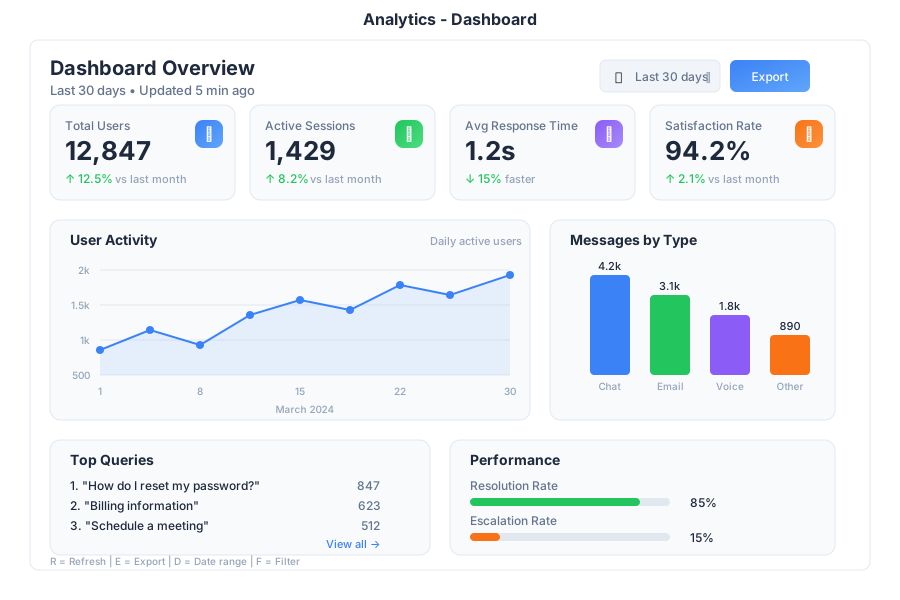
Analytics is the data visualization and reporting app in General Bots Suite. Track key metrics, build custom dashboards, generate reports, and get AI-powered insights about your business. Analytics turns your data into actionable information.
Features
Dashboard Overview
Dashboards are collections of widgets that display your data visually.
Default Dashboards:
| Dashboard | What It Shows |
|---|---|
| Overview | Key metrics across all areas |
| Sales | Revenue, deals, pipeline |
| Marketing | Campaigns, leads, conversion |
| Support | Tickets, response time, satisfaction |
| HR | Headcount, hiring, retention |
Creating a Dashboard
Step 1: Click "+ New" in the sidebar
Fill in the dashboard details:
- Dashboard Name - A descriptive title (e.g., "Q2 Performance")
- Description - Optional context for the dashboard
- Template - Start blank, use a template, or copy from existing
Step 2: Add Widgets
Click + Widget and choose a visualization type.
Widget Types
Numbers:
- Number - Single metric display
- Comparison - Metric with percentage change
- Progress - Goal tracking with progress bar
Charts:
- Line - Trends over time
- Bar - Category comparisons
- Area - Volume visualization
- Pie - Proportional breakdown
Tables & Lists:
- Table - Data grid with sorting
- Leaderboard - Ranked list
- List - Simple bullet items
Special:
- Geography - Map visualization
- Heatmap - Intensity grid
- AI Summary - AI-generated insights
Configuring Widgets
After selecting a widget type, configure the data source:
| Setting | Description |
|---|---|
| Title | Widget display name |
| Source | Database or data connection |
| Table | Specific table to query |
| X-Axis | Horizontal dimension |
| Y-Axis | Vertical measure |
| Group By | Time period or category |
| Aggregate | Sum, Count, Average, etc. |
| Filters | Conditions to apply |
Key Metric Cards
Display important numbers with context:
| Element | Purpose |
|---|---|
| Value | The main metric number |
| Trend Arrow | Up/down indicator |
| Comparison | vs last period |
| Progress Bar | Visual goal tracking |
| Goal | Target value |
Color Indicators:
| Color | Meaning |
|---|---|
| 🟢 Green (▲) | Positive trend / On target |
| 🔴 Red (▼) | Negative trend / Below target |
| 🟡 Yellow (─) | No change / Needs attention |
| ⚪ Gray | No comparison available |
AI Insights ✨
Let AI analyze your data and surface insights:
Insight Types:
| Category | What It Shows |
|---|---|
| 📈 Trends | Patterns and momentum in your data |
| ⚠️ Alerts | Issues that need attention |
| 💡 Recommendations | Suggested actions |
| 🎯 Predictions | Forecasts based on current data |
Ask the AI:
Why did revenue spike in March?
March revenue increased 28% due to three factors:
1. Enterprise Deal Closure - Three large deals ($150K+) that were in pipeline since Q4 closed in March
2. Annual Renewals - 15 customers renewed annual contracts (worth $320K total)
3. Product Launch - The new feature release drove 12 new mid-market signups
The spike is partially seasonal (end of Q1) and partially due to the product launch timing.
Reports
Generate and schedule reports:
Creating a Report:
- Click + New under Reports
- Select report type
- Configure data and format
- Schedule delivery (optional)
Report Options:
| Setting | Options |
|---|---|
| Content | Dashboard, AI insights, raw data |
| Date Range | Last 7/30/90 days, quarter, custom |
| Format | PDF, Interactive Web, Excel, PowerPoint |
| Schedule | Daily, Weekly, Monthly |
| Recipients | Email addresses for delivery |
Data Sources
Connect Analytics to various data sources:
| Source Type | Examples |
|---|---|
| Databases | PostgreSQL, MySQL, SQLite |
| Files | Excel, CSV, JSON |
| APIs | REST endpoints, GraphQL |
| Apps | CRM, Support, Calendar data |
| Bot Data | Conversation logs, user data |
Adding a Data Source:
- Go to Settings → Data Sources
- Click + Add Source
- Select source type
- Enter connection details
- Test and save
Sharing Dashboards
Share dashboards with your team:
- Click Share on any dashboard
- Set permissions (View, Edit, Owner)
- Copy link or invite by email
Permission Levels:
| Level | Can Do |
|---|---|
| View | See dashboard, apply filters |
| Edit | Modify widgets, change layout |
| Owner | Full control, manage sharing |
Link Sharing:
- Off - Only specific people can access
- On - Anyone with link can view
Keyboard Shortcuts
| Shortcut | Action |
|---|---|
R |
Refresh dashboard |
F |
Toggle fullscreen |
E |
Edit mode |
N |
New widget |
D |
Duplicate widget |
Delete |
Delete selected widget |
Ctrl+S |
Save dashboard |
Ctrl+P |
Print / Export PDF |
Ctrl+F |
Find / Filter |
/ |
Quick search |
← → |
Navigate dashboards |
Escape |
Exit edit mode |
Tips & Tricks
Dashboard Design
💡 Keep it simple - 5-7 widgets per dashboard is optimal
💡 Most important metrics at top - Follow the F-pattern reading
💡 Use consistent colors - Same metric = same color across widgets
💡 Group related widgets - Keep sales metrics together
Data Tips
💡 Set up daily sync for data sources that change frequently
💡 Use filters to let viewers customize their view
💡 Add comparison periods (vs last month, vs last year)
💡 Include goals/targets to show progress
AI Tips
💡 Ask "why" questions - AI excels at explaining trends
💡 Request predictions for planning
💡 Use AI for anomaly detection - "What's unusual this month?"
💡 Generate executive summaries before board meetings
Troubleshooting
Dashboard not loading
Possible causes:
- Data source disconnected
- Query timeout
- Permission issues
Solution:
- Check data source status in Settings
- Reduce date range or add filters
- Verify you have dashboard access
- Refresh the page
Data not updating
Possible causes:
- Sync schedule not running
- Source data hasn't changed
- Cache showing old data
Solution:
- Click Refresh on the dashboard
- Check data source sync status
- Go to Settings → Clear cache
- Verify source data has new records
Charts showing wrong numbers
Possible causes:
- Filter applied incorrectly
- Wrong aggregation method
- Date range mismatch
Solution:
- Check widget filters
- Verify aggregation (Sum vs Count vs Average)
- Confirm date range matches expectations
- Edit widget and review query
Export not working
Possible causes:
- Dashboard too large
- Browser blocking download
- Permission restrictions
Solution:
- Try exporting individual widgets
- Check browser download settings
- Use a different export format
- Contact administrator for permissions
BASIC Integration
Use Analytics in your bot dialogs:
Query Metrics
revenue = GET METRIC "total_revenue" FOR "this month"
lastMonth = GET METRIC "total_revenue" FOR "last month"

growth = ((revenue - lastMonth) / lastMonth) * 100

TALK "Revenue this month: $" + FORMAT(revenue, "#,##0")
TALK "Growth: " + FORMAT(growth, "#0.0") + "%"
Generate Reports
HEAR period AS TEXT "Which period? (weekly/monthly/quarterly)"

report = GENERATE REPORT "Sales Summary" FOR period

TALK "Here's your " + period + " sales report:"
SEND FILE report.pdf

TALK "Key highlights:"
TALK report.summary
Get AI Insights
insights = GET INSIGHTS FOR "Sales Dashboard"

TALK "Here are today's insights:"
FOR EACH insight IN insights.trends
    TALK "📈 " + insight
NEXT

TALK "Alerts:"
FOR EACH alert IN insights.alerts
    TALK "⚠️ " + alert
NEXT
Create Dashboard Widget
widget = NEW OBJECT
widget.type = "line_chart"
widget.title = "Daily Active Users"
widget.source = "bot_analytics"
widget.xAxis = "date"
widget.yAxis = "active_users"
widget.dateRange = "last 30 days"

ADD WIDGET widget TO "Overview Dashboard"
TALK "Widget added successfully"
Scheduled Reports
' This dialog runs on a schedule
report = GENERATE REPORT "Weekly Metrics" FOR "last 7 days"

recipients = ["ceo@company.com", "team@company.com"]

FOR EACH recipient IN recipients
    SEND MAIL recipient, "Weekly Metrics Report - " + TODAY,
        "Please find attached the weekly metrics report.", [report.pdf]
NEXT

LOG "Weekly report sent to " + COUNT(recipients) + " recipients"
See Also
- Research App - Deep dive into data questions
- Paper App - Create reports from insights
- How To: Monitor Your Bot
- Talk to Data Template