
8 KiB
Drive - File Management
Your cloud storage workspace
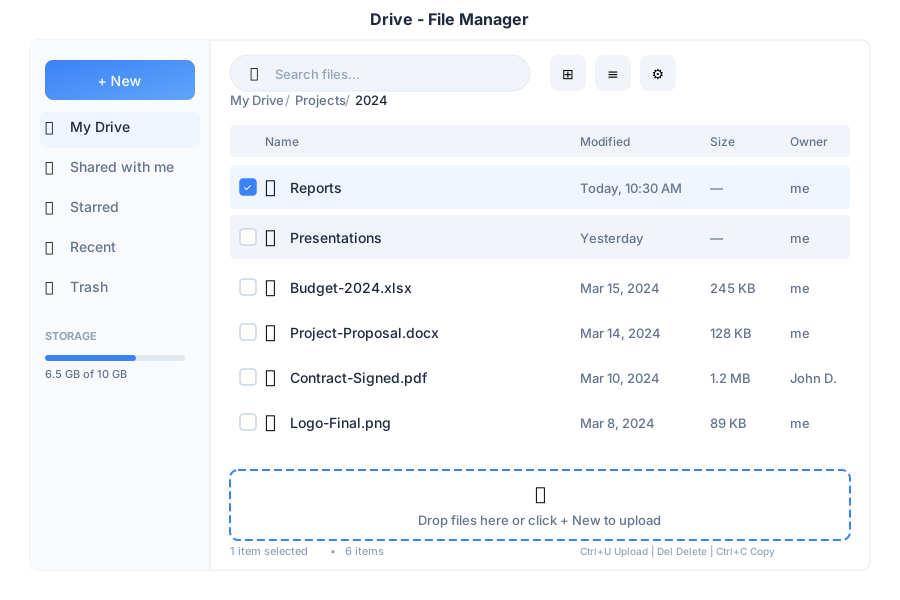
Overview
Drive is your personal cloud storage within General Bots Suite. Upload, organize, and share files with a familiar interface. Built with HTMX for smooth interactions and SeaweedFS for reliable object storage.
Features
Upload Files
Drag and Drop:
- Drag files from your computer
- Drop anywhere in the file area
- Upload progress shows automatically
Click to Upload:
- Click + New button
- Select Upload Files or Upload Folder
- Choose files from file picker
File Operations
| Action | How to Access |
|---|---|
| Open | Double-click file |
| Download | Right-click > Download |
| Rename | Right-click > Rename |
| Copy | Right-click > Copy |
| Move | Right-click > Move to |
| Star | Right-click > Star |
| Share | Right-click > Share |
| Delete | Right-click > Delete |
View Modes
| Mode | Description |
|---|---|
| Grid | Large thumbnails with previews |
| List | Detailed table with columns |
Navigation
- Breadcrumb: Click any folder in the path to jump back
- Sidebar: Quick access to My Drive, Starred, Recent, Trash
- Search: Find files by name or content
Labels & Organization
| Label | Icon | Use For |
|---|---|---|
| Work | 🔵 | Professional files |
| Personal | 🟢 | Private documents |
| Projects | 🟡 | Project-specific files |
| Custom | 🟣 | Create your own |
File Sync (Desktop Only)
The desktop app provides bidirectional file synchronization between your local machine and cloud Drive using rclone.
Requirements:
- General Bots desktop app (Tauri)
- rclone installed on your system
Setup:
- Install rclone:
https://rclone.org/install/ - Open Drive in the desktop app
- Click Settings → Sync
- Configure your sync folder (default:
~/GeneralBots) - Click Start Sync
Sync Controls: Located in the Drive sidebar under "Sync Status"
| Control | Description |
|---|---|
| Start | Begin synchronization |
| Stop | Stop current sync |
| Status | Shows idle, syncing, or error |
Sync Modes:
| Mode | Description |
|---|---|
| Push | Local → Cloud only |
| Pull | Cloud → Local only |
| Bisync | Bidirectional (default) |
Note: Sync features are only available in the desktop app. Web users see an "unavailable" status as sync requires local filesystem access.
Keyboard Shortcuts
| Shortcut | Action |
|---|---|
Enter |
Open selected file |
Delete |
Move to trash |
Ctrl+C |
Copy selected |
Ctrl+V |
Paste |
Ctrl+X |
Cut selected |
Ctrl+A |
Select all |
F2 |
Rename selected |
Ctrl+F |
Search files |
Ctrl+U |
Upload files |
↑ / ↓ |
Navigate files |
Managing Files via Chat
Upload the quarterly report
📎 Q4-Report.pdf
✅ File uploaded successfully!
📄 Q4-Report.pdf (2.4 MB)
📁 Saved to: My Drive
Finding Files
Find the budget spreadsheet
📁 Found 2 files matching "budget":
📊 Budget-2025.xlsx (245 KB)
📊 Budget-Draft.xlsx (180 KB)
Which one would you like to open?
Open the 2025 one
📊 Opening Budget-2025.xlsx...
View in Player or download?
Sharing Files
Share the project proposal with Sarah
✅ File shared!
📄 Project-Proposal.pdf
👤 Shared with: Sarah
🔗 Link: https://...
Sarah will receive an email notification.
Creating Folders
Create a folder called "2025 Projects"
✅ Folder created!
📁 2025 Projects
📍 Location: My Drive
API Endpoints
| Endpoint | Method | Description |
|---|---|---|
/api/drive/list |
GET | List files |
/api/drive/upload |
POST | Upload file |
/api/drive/download/:path |
GET | Download file |
/api/drive/delete/:path |
DELETE | Delete file |
/api/drive/move |
POST | Move/rename file |
/api/drive/copy |
POST | Copy file |
/api/drive/mkdir |
POST | Create folder |
/api/drive/share |
POST | Share file |
Query Parameters
| Parameter | Values | Default |
|---|---|---|
path |
Folder path | / |
sort |
name, size, modified |
name |
order |
asc, desc |
asc |
view |
grid, list |
grid |
filter |
starred, recent, trash |
none |
Response Format
{
    "path": "/Projects/2024",
    "files": [
        {
            "name": "Report.pdf",
            "type": "file",
            "size": 245000,
            "modified": "2024-03-15T10:30:00Z",
            "starred": false,
            "shared": true
        },
        {
            "name": "Documents",
            "type": "folder",
            "modified": "2024-03-14T09:00:00Z",
            "starred": true
        }
    ],
    "storage": {
        "used": 4500000000,
        "total": 10737418240
    }
}
File Type Icons
| Type | Extensions | Icon |
|---|---|---|
| Document | .pdf, .doc, .docx | 📄 |
| Spreadsheet | .xls, .xlsx, .csv | 📊 |
| Presentation | .ppt, .pptx | 📽️ |
| Image | .jpg, .png, .gif, .svg | 🖼️ |
| Video | .mp4, .webm, .mov | 🎬 |
| Audio | .mp3, .wav, .ogg | 🎵 |
| Archive | .zip, .tar, .gz | 📦 |
| Code | .js, .py, .rs, .html | 💻 |
| Folder | - | 📁 |
Storage Backend
Drive uses SeaweedFS for object storage:
- Scalable: Grows with your needs
- Redundant: Data replicated across nodes
- Fast: Optimized for small and large files
- S3 Compatible: Works with standard S3 tools
Configure storage in config.csv:
key,value
drive-server,http://localhost:9000
drive-bucket,bot-files
drive-quota-gb,10
Troubleshooting
Upload Fails
- Check file size (default limit: 100MB)
- Verify storage quota isn't exceeded
- Check network connection
- Try smaller files or compress first
Files Not Displaying
- Refresh the page
- Check folder path is correct
- Verify file permissions
- Clear browser cache
Sharing Not Working
- Verify recipient email address
- Check sharing permissions
- Ensure file isn't in Trash
See Also
- Suite Manual - Complete user guide
- Admin vs User Views - Permission levels
- Chat App - Upload files via chat
- Player App - View files in Player
- Storage API - API reference